
 我要评论
我要评论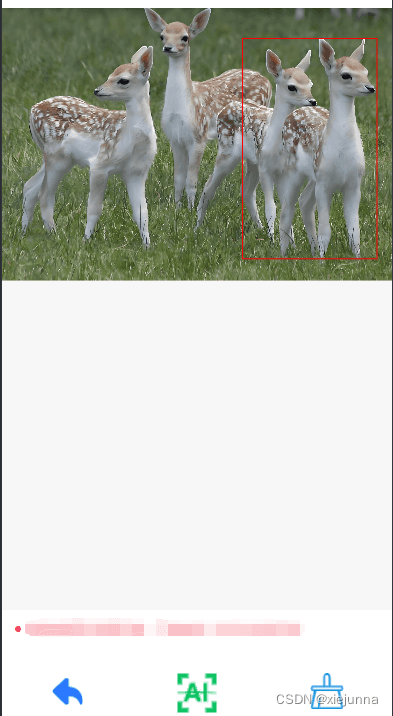
wxml
<view class="page-body">
  <!-- 画布 -->
  <view class="page-body-wrapper">
    <canvas canvas-id="mycanvas" type="2d" id="mycanvas" class='mycanvas' bindtouchstart="touchstart" bindtouchmove="touchmove" bindtouchend="touchend"></canvas>
  </view>
  <!-- 操作 -->
  <view class="layout-bottom">
    <view class="page-bottom">
      <view class="pbottom pmiddle" bindtap="pre">
        <image src="/images/next2.png" style="height: 65rpx; width: 65rpx; " mode="aspectfit"></image>
        <view class="picturebottomarea"><p>返回</p></view>
      </view>
      <view class="pbottom pmiddle" bindtap="detection">
        <image src="{{sburl}}" style="height: 100rpx; width: 100rpx; " mode="aspectfit"></image>
        <view class="picturebottomarea1"><p>识别</p></view>
      </view>
      <view class="pbottom pmiddle" bindtap="clear">
        <image src="/images/qc3.png" style="height: 70rpx; width: 70rpx; " mode="aspectfit"></image>
        <view class="picturebottomarea"><p>清除选区</p></view>
      </view>
    </view>
  </view>
</view>
wxss
.mycanvas { background-color: #f7f7f7; width: 100vw; height: 100vh; }
page { width: 100%; height: 100%; padding: 0; margin: 0; background-color: #f8f8f8; font-size: 32rpx; line-height: 1.6; display: flex; display: -webkit-flex; flex-direction: column; flex-wrap: wrap; justify-content: center; align-items: center; }
.page-body { width: 100%; height: 100%; padding: 0; margin: 0; }  .page-body-wrapper { width: 100%; height: 80%; display: flex; flex-direction: column; align-items: center; width: 100%; }
.layout-bottom { width: 100%; height: 20%; background-color: white; }
.page-bottom { width: 100%; height: 75%; display: flex; display: -webkit-flex; flex-direction: row; flex-wrap: wrap; justify-content: center; align-items: center; }
.pbottom { width: 33.333333333%; height: 100%; }
.pmiddle{ display: flex; display: -webkit-flex; flex-direction: column; flex-wrap: wrap; justify-content: center; align-items: center; }
.picturebottomarea { margin-top: 15rpx; font-size: small; }
.picturebottomarea1 { font-size: 0.9rem; letter-spacing:4rpx; font-weight: 600; color: #585858; }
js
图片适配画布显示,关键在于计数图片缩放比例
// 定义变量
let startx, starty, endx, endy, rectwidth, rectheight
page({
  data: {
    drawwidth: 0,
    drawheight: 0,
    drawx: 0,
    drawy: 0,
    ratio: 0,//缩放比例
    sburl: '/images/a2.png',//按钮
    imgsrc: '/images/ll.png',
    area: [],
    ctx: null,
    canvas: null,
    drawimage: null,
  },
  onload(options) {
    startx = 0
    starty = 0
    endx = 0
    endy = 0
    rectwidth = 0
    rectheight = 0
    //把图片绘制到画布上
    this.drawimage(this.data.imgsrc)
  },
  //把图片绘制到画布上
  drawimage(imgsrc){
    let _this = this
    wx.createselectorquery().select('#mycanvas').fields({ node: true, size: true }).exec((res0) => {
      //获取canvas宽高
      const canvas = res0[0].node
      console.log(canvas)
      let ctx = canvas.getcontext('2d');
      const cw = res0[0].width
      const ch = res0[0].height
      console.log('canvas宽度:'+cw, 'canvas高度:'+ch)
      const dpr = wx.getsysteminfosync().pixelratio
      console.log(dpr)
      canvas.width = cw * dpr     // 获取宽
      canvas.height = ch * dpr  // 获取高
      console.log(cw * dpr, ch * dpr)
      ctx.scale(dpr, dpr)
      wx.getimageinfo({
        src: imgsrc,
        success: function (res) {
          //获取图片宽高
          let iw = res.width
          let ih = res.height
          console.log('图片宽度:'+iw, '图片高度:'+ih);
          // 计算绘制位置,保持原始比例
          let ratio = math.min(cw / iw, ch / ih);
          console.log(ratio)
          // 图片适配画布显示,关键在于计数图片缩放比例
          let drawwidth = iw * ratio;
          let drawheight = ih * ratio;
          console.log('图片缩放后宽度:'+drawwidth, '图片缩放后高度:'+drawheight);
          let drawx = (cw - drawwidth) / 2;
          let drawy = (ch - drawheight) / 2;
          // 到这里就可以直接绘制
          let image = canvas.createimage();//创建iamge实例
          image.src = imgsrc;  // 引入本地图片
          image.onload = function () {
            ctx.drawimage(image, 0, 0, drawwidth, drawheight);
          }
          _this.setdata({drawwidth: drawwidth,drawheight: drawheight,drawx: drawx,drawy: drawy,  ratio: ratio,ctx: ctx,canvas: canvas,drawimage: image})
        },
        fail: function (res) {
          console.error('获取图片信息失败', res);
        }
      });
    })
  },
  // 触摸开始事件
  touchstart(e) {
    startx = e.touches[0].x
    starty = e.touches[0].y
    console.log("触摸开始事件", e.touches[0], startx, starty)
  },
  // 触摸移动事件
  touchmove(e) {
    let imgsrc = this.data.imgsrc
    let drawwidth = this.data.drawwidth
    let drawheight = this.data.drawheight
    let ctx = this.data.ctx
    let image = this.data.drawimage
    endx = e.touches[0].x
    endy = e.touches[0].y
    ctx.clearrect(0, 0, drawwidth, drawheight)
    ctx.drawimage(image, 0, 0, drawwidth, drawheight);
    rectwidth = endx - startx
    rectheight = endy - starty
    ctx.strokerect(startx, starty, rectwidth, rectheight)
    ctx.strokestyle = 'red'
    ctx.stroke()
  },
  // 触摸结束事件
  touchend(e) {
    // 绘制完成后的操作
    // 可以将坐标框的位置和大小保存到全局变量或发送给服务器等
    console.log("触摸结束事件",e.changedtouches[0])
  },
  //清除绘制的图形
  clear(){
    console.log("清除绘制")
    let imgsrc = this.data.imgsrc
    let drawwidth = this.data.drawwidth
    let drawheight = this.data.drawheight
    let ctx = this.data.ctx
    let image = this.data.drawimage
    ctx.clearrect(0, 0, drawwidth, drawheight)
    ctx.drawimage(image, 0, 0, drawwidth, drawheight);
    startx = 0
    starty = 0
    endx = 0
    endy = 0
    rectwidth = 0
    rectheight = 0
  },
  // 识别
  detection(e){
    console.log("开始识别")
    let ratio = this.data.ratio
    //获取绘制选区的相关信息,这里要除以图片缩放比例,才是真是图片上的框选区
    if (rectwidth != 0 && rectheight != 0){
        console.log('矩形','x='+startx/ratio,'y='+starty/ratio,'width='+rectwidth/ratio,'height='+rectheight/ratio)
     }
  },
  //上一页
  pre(){
    console.log("上一页")
  }
})
到此这篇关于微信小程序画布显示图片绘制矩形选区的文章就介绍到这了,更多相关微信小程序图片绘制矩形选区内容请搜索代码网以前的文章或继续浏览下面的相关文章希望大家以后多多支持代码网!



发表评论