
 我要评论
我要评论需求
上一篇写了excel文档解析,顺便就看看word文档。
解决问题
1.前端在浏览器预览word文档。
2.可以直接提取word文档内容
利用技术
预览文档--docx-preview
<script src="https://cdn.jsdelivr.net/npm/docx-preview@0.1.15/dist/docx-preview.js"></script>
提取文档内容--mammoth
<script src="https://cdn.bootcdn.net/ajax/libs/mammoth/1.6.0/mammoth.browser.min.js"></script>
预览文档实现过程
// html
<div id="preview"></div>
实现预览功能
renderasync接收四个参数
1.document: 数据格式可以为blob | arraybuffer | uint8array, // could be any type that supported by jszip.loadasync
2.bodycontainer: 渲染的区域
3.stylecontainer: 通常用于指定一个html元素,该元素将用于包含和管理渲染文档所需的样式信息,包括字体、颜色、布局等。
4.options:{} 具体参数看文档
// javascript
const onword = (event) => {
    let reader = new filereader();
    let file = event.target.files[0];
    let options = { inwrapper: false, ignorewidth: true, ignoreheight: true }
    docx.renderasync(file, document.getelementbyid("preview"), null, options)
}
提取word文档实现过程
1.extractrawtext--转文字;
2.converttohtml--转html;
3.converttomarkdown--转markdown 文档
const onword = (event) => {
    let reader = new filereader();
    let file = event.target.files[0];
    if (file) {
        reader.onload = function (e) {
            const data = e.target.result;
            // 转文字
            mammoth.extractrawtext({ arraybuffer: data }).then(function (displayresult) {
                worddata.value = displayresult.value
            }).done();
            // 转html
            mammoth.converttohtml({ arraybuffer: data }).then(function (displayresult) {
                console.log(displayresult);
            }).done();
            // 转markdown 文档。
            mammoth.converttomarkdown({ arraybuffer: data }).then(function (displayresult) {
                console.log(displayresult);
            }).done();
        };
        reader.readasarraybuffer(file);
    }
}
word预览
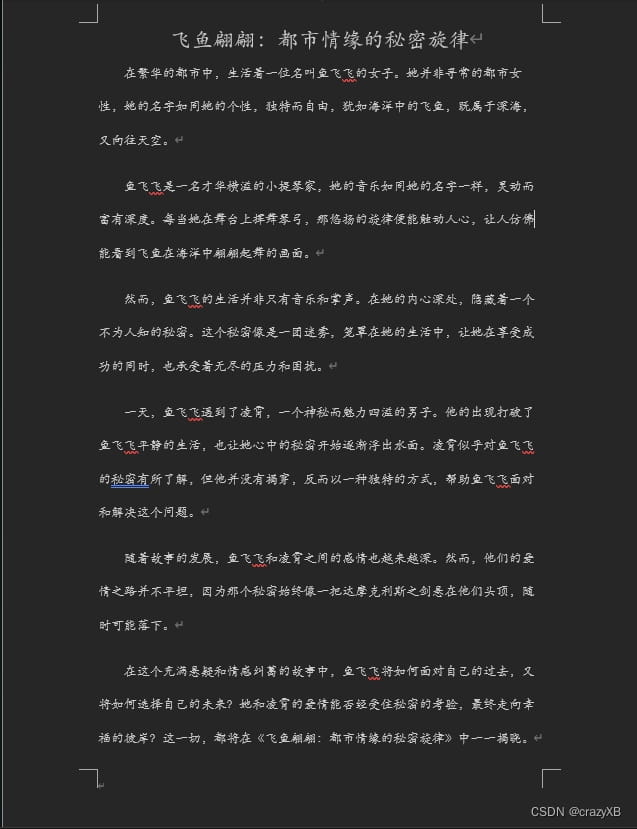
效果预览
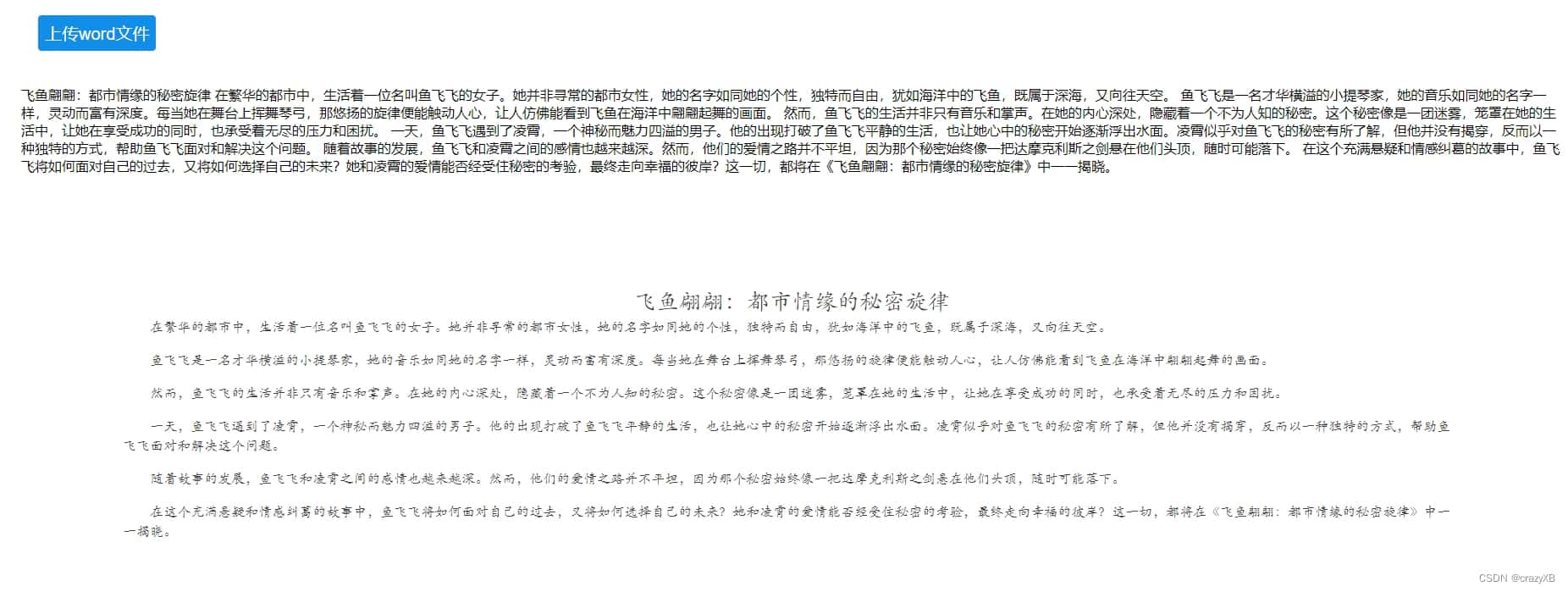
完整代码如下
<!doctype html>
<html lang="en">

<head>
    <title>上传word文件</title>
    <style>
        * {
            margin: 0;
            padding: 0;
        }

        .container {
            padding: 0 50px;
        }

        .operation {
            padding: 20px;
        }

        .btn {
            min-width: 50px;
            font-size: 20px;
            color: #fff;
            background: #118ee9;
            margin: 0 20px 0 0;
            padding: 8px;
            border: none;
            border-radius: 4px;
            box-sizing: border-box;
        }

        .item {
            width: 350px;
            box-sizing: border-box;
            padding: 4px 14px 4px 14px;
            color: #000;
            font-size: 12px;
            background: #fff;
        }

    </style>

    <script src="https://unpkg.com/vue@3/dist/vue.global.js"></script>
    <script src="https://cdn.bootcdn.net/ajax/libs/mammoth/1.6.0/mammoth.browser.min.js"></script>
    <script src="https://cdn.jsdelivr.net/npm/jszip@3.10.1/dist/jszip.min.js"></script>
    <script src="https://cdn.jsdelivr.net/npm/docx-preview@0.1.15/dist/docx-preview.js"></script>

</head>

<body>
    <div class="container" id="app">
        <div class="operation">
            <button class="btn" @click="uploadfile">上传word文件</button>
        </div>
        <br>
        <div v-if="worddata">{{worddata}}</div>
        <br>
        <div id="preview"></div>
    </div>
    <script>
        const { createapp, ref, onmounted } = vue
        createapp({
            setup() {
                let worddata = ref('')
                const uploadfile = (mark) => {
                    let inputele = document.createelement('input')
                    inputele.type = 'file'
                    inputele.accept = '.doc,.docx,application/msword,application/vnd.openxmlformats-officedocument.wordprocessingml.document'
                    inputele.click()
                    inputele.addeventlistener('input', (event) => {
                        onword(event)
                    })
                };
                const onword = (event) => {
                    let reader = new filereader();
                    let file = event.target.files[0];
                    let options = { inwrapper: false, ignorewidth: true, ignoreheight: true }
                    docx.renderasync(file, document.getelementbyid("preview"),null, options)
                    let filename = file.name
                    if (file) {
                        reader.onload = function (e) {
                            const data = e.target.result;
                            // 转文字
                            mammoth.extractrawtext({ arraybuffer: data }).then(function (displayresult) {
                                worddata.value = displayresult.value
                            }).done();
                            // 转html
                            mammoth.converttohtml({ arraybuffer: data }).then(function (displayresult) {
                                console.log(displayresult);
                            }).done();
                            // 转markdown 文档。
                            mammoth.converttomarkdown({ arraybuffer: data }).then(function (displayresult) {
                                console.log(displayresult);
                            }).done();
                        };
                        reader.readasarraybuffer(file);
                    }
                }

                return {
                    worddata,
                    uploadfile,
                    onword,
                }
            }
        }).mount('#app')
    </script>
</body>

</html>
总结
到此这篇关于前端实现word文档预览和内容提取的文章就介绍到这了,更多相关前端word文档预览和内容提取内容请搜索代码网以前的文章或继续浏览下面的相关文章希望大家以后多多支持代码网!





发表评论