
 我要评论
我要评论在许多业务系统中,从表格数据生成报表、发票或其他结构化文档是一项常见需求。这些数据通常存储在 c# 的 datatable 对象中,而问题在于:.net 本身并不提供将 datatable 直接渲染为 pdf 的能力。
本文将通过一个清晰、可落地的示例,介绍如何在 c# 中将 datatable 导出为专业的 pdf 文档。我们将借助第三方 pdf 组件,快速实现从表格数据到 pdf 报告的自动化生成。
为什么需要以编程方式生成 pdf
在 c# 应用中,datatable 常用于承载数据库查询结果或业务数据。虽然将其显示在界面控件(如 datagridview)中非常容易,但当需要生成可分发、可归档、格式稳定的文档时,pdf 通常是更合适的选择。
问题在于:
datatable只是内存中的数据结构- 它不具备任何文档布局或渲染能力
- 手动绘制 pdf 内容成本极高且难以维护
因此,实际开发中通常会引入专门的 pdf 生成库,用于将表格数据映射为 pdf 表格,并自动处理分页、布局和样式。
项目准备:配置 c# pdf 导出环境
在开始导出 datatable 之前,需要先完成项目和依赖的配置。
1. 创建 c# 项目
可以使用 控制台应用、winforms、wpf 或 asp.net core 项目,本文示例以控制台程序为例,其他类型项目原理一致。
2. 安装 pdf 组件(spire.pdf)
通过 nuget 安装 spire.pdf:
install-package spire.pdf
或在 nuget ui 中搜索 spire.pdf 并安装。
3. 引入命名空间
using system;
using system.data;
using spire.pdf;
using spire.pdf.graphics;
using spire.pdf.tables;
using system.drawing; // 用于 color 和 pointf
至此,项目已具备导出 pdf 的基本环境。
核心实现:将 datatable 转换为 pdf
1. 准备示例 datatable
下面的方法用于构造一个示例 datatable,作为 pdf 报表的数据来源。
public static datatable getsampledatatable()
{
    datatable datatable = new datatable("products");

    // 定义列
    datatable.columns.add("productid", typeof(int));
    datatable.columns.add("productname", typeof(string));
    datatable.columns.add("category", typeof(string));
    datatable.columns.add("unitprice", typeof(decimal));
    datatable.columns.add("unitsinstock", typeof(int));

    // 添加示例数据行
    datatable.rows.add(1, "chai", "beverages", 18.00m, 39);
    datatable.rows.add(2, "chang", "beverages", 19.00m, 17);
    datatable.rows.add(3, "aniseed syrup", "confections", 10.00m, 13);
    datatable.rows.add(4, "chef anton's cajun seasoning", "condiments", 22.00m, 53);
    datatable.rows.add(5, "chef anton's gumbo mix", "condiments", 21.35m, 0);
    datatable.rows.add(6, "grandma's boysenberry spread", "condiments", 25.00m, 120);
    datatable.rows.add(7, "uncle bob's organic dried pears", "produce", 30.00m, 15);
    datatable.rows.add(8, "northwoods cranberry sauce", "condiments", 40.00m, 6);

    return datatable;
}
2. 基础版:将 datatable 输出为 pdf 表格
public static void exportdatatabletopdf(datatable datatable, string filepath)
{
    // 创建 pdf 文档
    pdfdocument doc = new pdfdocument();
    pdfpagebase page = doc.pages.add();

    // 添加标题
    string title = "product inventory report";
    pdffont titlefont = new pdffont(pdffontfamily.helvetica, 20f, pdffontstyle.bold);
    sizef titlesize = titlefont.measurestring(title);
    float titlex = (page.canvas.clientsize.width - titlesize.width) / 2;
    page.canvas.drawstring(title, titlefont, pdfbrushes.darkblue, titlex, 20);

    // 创建 pdftable
    pdftable pdftable = new pdftable();

    // 设置数据源
    pdftable.datasource = datatable;

    // 表格样式设置
    pdftable.style.defaultstyle.font = new pdffont(pdffontfamily.helvetica, 10f);
    pdftable.style.headerstyle.font = new pdffont(pdffontfamily.helvetica, 11f, pdffontstyle.bold);
    pdftable.style.headerstyle.backgroundbrush = pdfbrushes.lightgray;
    pdftable.style.showheader = true; // 显示表头

    // 绘制表格
    pdflayoutresult result = pdftable.draw(page, new pointf(0, 60));

    // 保存文件
    doc.savetofile(filepath);
    doc.close();
}
该方法中,pdftable.datasource 会自动将 datatable 的列和行映射为 pdf 表格结构,这是整个导出的关键步骤。
3. 进阶版:带样式的 pdf 报表
public static void exportdatatabletopdfwithstyle(datatable datatable, string filepath)
{
    // 创建 pdf 文档
    pdfdocument doc = new pdfdocument();
    pdfpagebase page = doc.pages.add();

    // 设置页边距
    doc.pagesettings.margins.all = 40;

    // 添加标题
    string title = "detailed product inventory report";
    pdffont titlefont = new pdffont(pdffontfamily.helvetica, 24f, pdffontstyle.bold);
    sizef titlesize = titlefont.measurestring(title);
    float titlex = (page.canvas.clientsize.width - titlesize.width) / 2;
    page.canvas.drawstring(title, titlefont, pdfbrushes.darkblue, titlex, 20);

    // 添加说明文字
    string introduction = "this report provides an overview of current product inventory levels, detailing product id, name, category, unit price, and units in stock.";
    pdffont introfont = new pdffont(pdffontfamily.helvetica, 12f);
    page.canvas.drawstring(
        introduction,
        introfont,
        pdfbrushes.black,
        new pointf(0, 60),
        new pdfstringformat(pdfstringformatflags.wordbreak) { measuretrailingspaces = true }
    );

    // 计算表格起始位置
    float tabley = 60 + introfont.measurestring(introduction, page.canvas.clientsize.width).height + 20;

    // 创建 pdftable
    pdftable pdftable = new pdftable();
    pdftable.datasource = datatable;

    // 表格样式
    pdftable.style.defaultstyle.font = new pdffont(pdffontfamily.helvetica, 9f);
    pdftable.style.headerstyle.font = new pdffont(pdffontfamily.helvetica, 10f, pdffontstyle.bold);
    pdftable.style.headerstyle.backgroundbrush = new pdfsolidbrush(color.fromargb(120, 180, 230));
    pdftable.style.headerstyle.textbrush = pdfbrushes.white;
    pdftable.style.showheader = true;

    // 交替行背景色
    pdftable.style.alternaterowstyle.backgroundbrush = new pdfsolidbrush(color.lightyellow);

    // 单元格内边距
    pdftable.style.defaultstyle.cellpadding = 5;

    // 设置列宽
    pdftable.columns[0].width = 70f;
    pdftable.columns[1].width = 150f;
    pdftable.columns[2].width = 100f;
    pdftable.columns[3].width = 80f;
    pdftable.columns[4].width = 90f;

    // 绘制表格(自动分页)
    pdflayoutresult result = pdftable.draw(page, new pointf(0, tabley));

    // 保存文件
    doc.savetofile(filepath);
    doc.close();
}
输出结果预览
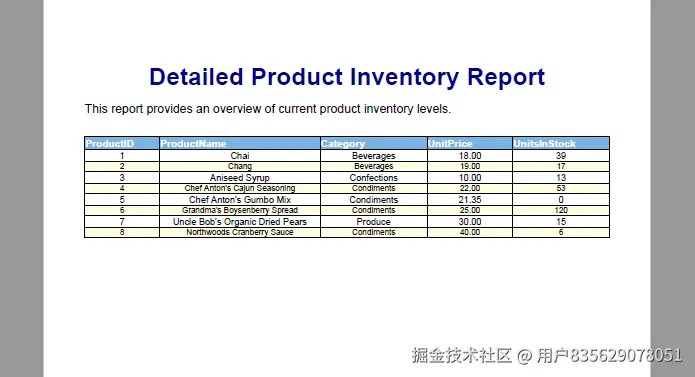
进阶建议与最佳实践
- 自动分页:
pdftable.draw会在数据超出页面时自动分页 - 异常处理:建议对文件保存操作添加
try-catch - 性能考虑:超大数据量时注意内存占用
- 动态列结构:可根据
datatable.columns动态配置列样式
总结
通过引入 spire.pdf for .net,在 c# 中将 datatable 导出为 pdf 变得简单且高效。无论是基础表格导出,还是带样式的正式报表,该方案都能满足大多数业务系统的文档生成需求。
这种方式不仅显著减少了开发成本,也能稳定地产出专业级 pdf 文档,非常适合在企业级应用中使用。
到此这篇关于c#实现将datatable导出为pdf文档的文章就介绍到这了,更多相关c# datatable导出pdf内容请搜索代码网以前的文章或继续浏览下面的相关文章希望大家以后多多支持代码网!





发表评论