
 我要评论
我要评论工作中需要整理一些pdf格式文件,程序员的存在就是为了让大家可以“懒更高效地工作”,而ai的出现就可以让程序更“懒高效地工作”,于是求助于很长(我指上下文)的gemini,它帮助了我快速搭建项目,但也给我留下了坑(见本文“后记”部分),于是我把这个开发过程记录了下来。
技术选型
- ui框架: wpf (.net 6/7/8 或 .net framework 4.7.2+) - 用于构建现代化的windows桌面应用。
- pdf处理: itext (替代了旧版的 itextsharp 及 itext7) - 一个强大且流行的开源pdf处理库。
- excel导出: npoi - 一个开源的.net库,可以读写office文档,无需安装microsoft office。
- 设计模式: mvvm - 使ui和业务逻辑分离,提高代码的可测试性和复用性。
第一步:创建项目并安装依赖库
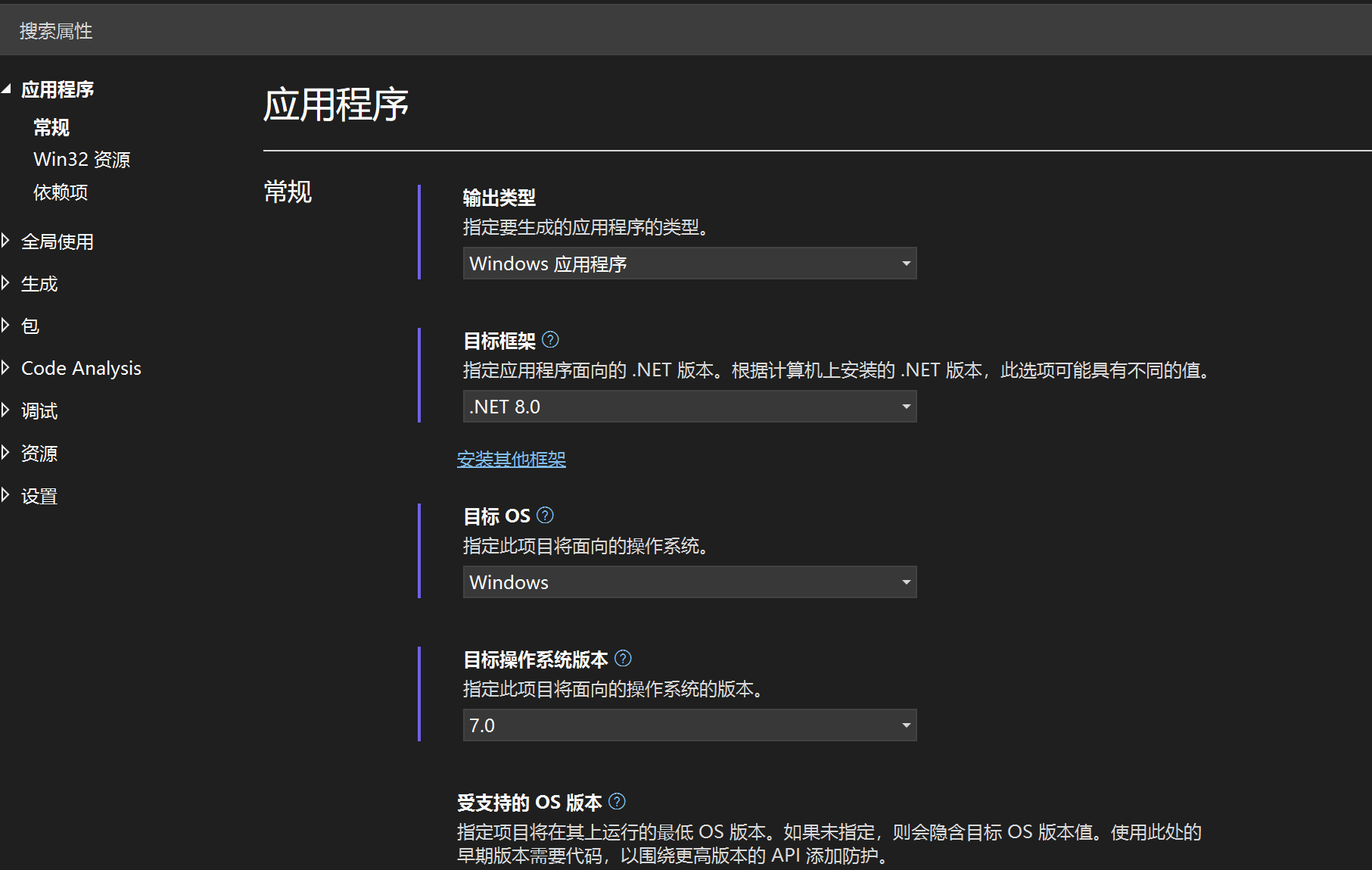
打开 visual studio,创建一个新的 wpf 应用程序 项目(本文为.net 8.0项目)。
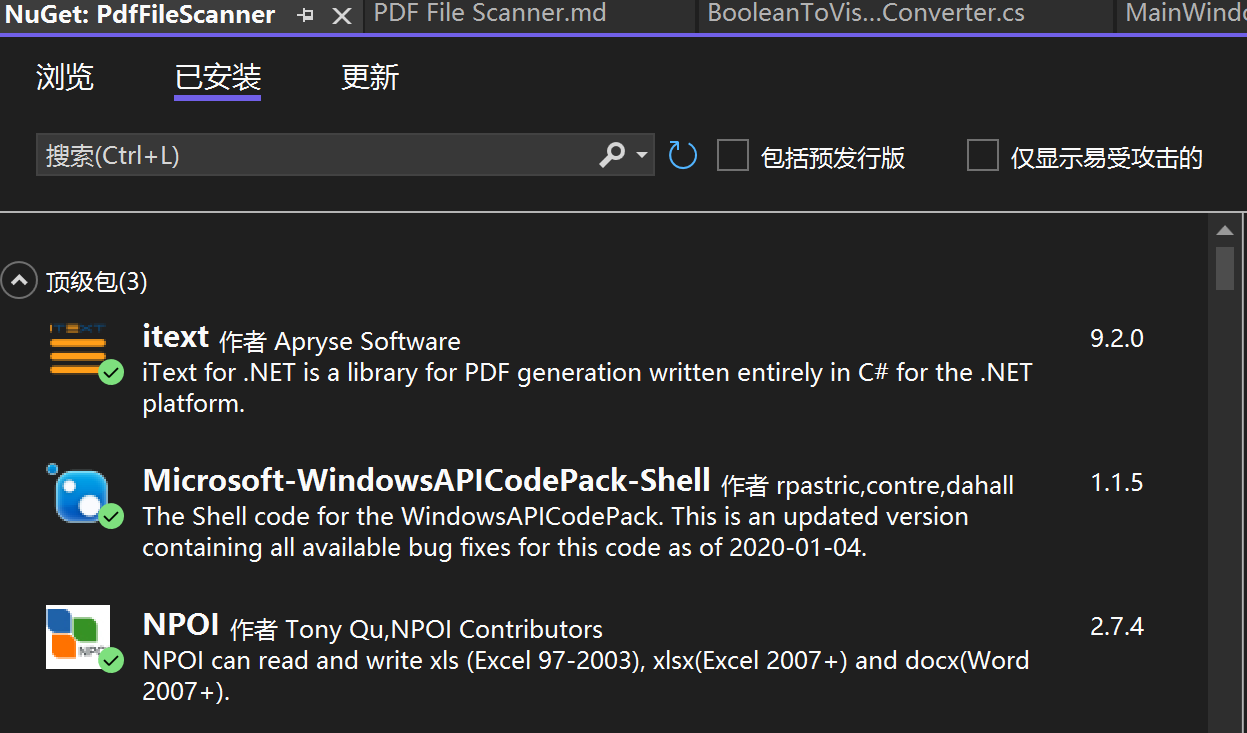
通过 nuget 包管理器安装以下必要的库。在“解决方案资源管理器”中右键点击你的项目,选择“管理nuget程序包”,然后搜索并安装:
itextnpoimicrosoft.windowsapicodepack-shell(为了一个更好看的文件夹选择对话框)
第二步:定义数据模型 (model)
这是我们用来存储每个pdf文件信息的类。
pdffileinfo.cs
namespace pdffilescanner
{
    public class pdffileinfo
    {
        public string filename { get; set; } = string.empty;
        public int pagecount { get; set; }
        public string filesize { get; set; } = string.empty;
    }
}
第三步:创建视图模型 (viewmodel)
viewmodel 是连接视图和模型的桥梁,包含了所有的业务逻辑和ui状态,在这里,我按照ai的提示创建了mainviewmodel类。
mainviewmodel.cs
using itext.kernel.pdf;
using npoi.ss.usermodel;
using npoi.xssf.usermodel;
using system.collections.objectmodel;
using system.componentmodel;
using system.io;
using system.threading.tasks;
using system.windows;
using system.windows.input;
using microsoft.win32;
using microsoft.windowsapicodepack.dialogs; // for modern folder browser

namespace pdffilescanner
{
    public class mainviewmodel : inotifypropertychanged
    {
        // inotifypropertychanged 实现,用于通知ui属性已更改
        public event propertychangedeventhandler? propertychanged;
        protected virtual void onpropertychanged(string propertyname)
        {
            propertychanged?.invoke(this, new propertychangedeventargs(propertyname));
        }

        // 存储pdf文件信息的集合,observablecollection能自动通知ui更新
        public observablecollection<pdffileinfo> pdffiles { get; } = new observablecollection<pdffileinfo>();

        private string _statustext = "请选择一个文件夹...";
        public string statustext
        {
            get => _statustext;
            set { _statustext = value; onpropertychanged(nameof(statustext)); }
        }

        private double _progressvalue;
        public double progressvalue
        {
            get => _progressvalue;
            set { _progressvalue = value; onpropertychanged(nameof(progressvalue)); }
        }

        private bool _isbusy;
        public bool isbusy
        {
            get => _isbusy;
            set
            {
                _isbusy = value;
                onpropertychanged(nameof(isbusy));
                // 当isbusy状态改变时,通知命令重新评估其能否执行
                ((relaycommand)selectfoldercommand).raisecanexecutechanged();
                ((relaycommand)exporttoexcelcommand).raisecanexecutechanged();
            }
        }

        // 命令绑定
        public icommand selectfoldercommand { get; }
        public icommand exporttoexcelcommand { get; }

        public mainviewmodel()
        {
            selectfoldercommand = new relaycommand(async () => await processfolderasync(), () => !isbusy);
            exporttoexcelcommand = new relaycommand(exporttoexcel, () => pdffiles.count > 0 && !isbusy);
        }

        private async task processfolderasync()
        {
            // 使用现代化的文件夹选择对话框
            var dialog = new commonopenfiledialog
            {
                isfolderpicker = true,
                title = "请选择包含pdf文件的文件夹"
            };

            if (dialog.showdialog() == commonfiledialogresult.ok)
            {
                string selectedpath = dialog.filename;
                isbusy = true;
                statustext = "正在准备处理...";
                pdffiles.clear();
                progressvalue = 0;

                await task.run(() => // 在后台线程执行耗时操作,避免ui卡死
                {
                    var files = directory.getfiles(selectedpath, "*.pdf");
                    int processedcount = 0;

                    foreach (var file in files)
                    {
                        processedcount++;
                        var progresspercentage = (double)processedcount / files.length * 100;

                        // 更新ui元素必须在ui线程上执行
                        application.current.dispatcher.invoke(() =>
                        {
                            statustext = $"正在处理: {path.getfilename(file)} ({processedcount}/{files.length})";
                            progressvalue = progresspercentage;
                        });

                        try
                        {
                            // 获取文件信息
                            var fileinfo = new fileinfo(file);
                            int pagecount = 0;

                            // 使用 itext7 读取pdf页数
                            using (var pdfreader = new pdfreader(file))
                            {
                                using (var pdfdoc = new pdfdocument(pdfreader))
                                {
                                    pagecount = pdfdoc.getnumberofpages();
                                }
                            }

                            // 创建模型对象并添加到集合中
                            var pdfdata = new pdffileinfo
                            {
                                filename = fileinfo.name,
                                pagecount = pagecount,
                                filesize = $"{fileinfo.length / 1024.0:f2} kb" // 格式化文件大小
                            };

                            application.current.dispatcher.invoke(() => pdffiles.add(pdfdata));
                        }
                        catch (system.exception ex)
                        {
                            // 如果某个pdf文件损坏,记录错误并继续
                            application.current.dispatcher.invoke(() =>
                            {
                                statustext = $"处理文件 {path.getfilename(file)} 时出错: {ex.message}";
                            });
                        }
                    }
                });

                statustext = $"处理完成!共找到 {pdffiles.count} 个pdf文件。";
                isbusy = false;
            }
        }

        private void exporttoexcel()
        {
            var savefiledialog = new savefiledialog
            {
                filter = "excel 工作簿 (*.xlsx)|*.xlsx",
                filename = $"pdf文件列表_{system.datetime.now:yyyymmddhhmmss}.xlsx"
            };

            if (savefiledialog.showdialog() == true)
            {
                try
                {
                    // 使用 npoi 创建 excel
                    iworkbook workbook = new xssfworkbook();
                    isheet sheet = workbook.createsheet("pdf文件信息");

                    // 创建表头
                    irow headerrow = sheet.createrow(0);
                    headerrow.createcell(0).setcellvalue("文件名");
                    headerrow.createcell(1).setcellvalue("页数");
                    headerrow.createcell(2).setcellvalue("文件大小 (kb)");

                    // 填充数据
                    for (int i = 0; i < pdffiles.count; i++)
                    {
                        irow datarow = sheet.createrow(i + 1);
                        datarow.createcell(0).setcellvalue(pdffiles[i].filename);
                        datarow.createcell(1).setcellvalue(pdffiles[i].pagecount);
                        datarow.createcell(2).setcellvalue(pdffiles[i].filesize);
                    }

                    // 自动调整列宽
                    sheet.autosizecolumn(0);
                    sheet.autosizecolumn(1);
                    sheet.autosizecolumn(2);

                    // 写入文件
                    using (var fs = new filestream(savefiledialog.filename, filemode.create, fileaccess.write))
                    {
                        workbook.write(fs);
                    }

                    messagebox.show("成功导出到excel!", "导出成功", messageboxbutton.ok, messageboximage.information);
                }
                catch (system.exception ex)
                {
                    messagebox.show($"导出失败: {ex.message}", "错误", messageboxbutton.ok, messageboximage.error);
                }
            }
        }
    }

    // 一个简单的icommand实现
    public class relaycommand : icommand
    {
        private readonly system.action _execute;
        private readonly system.func<bool>? _canexecute;

        public event system.eventhandler? canexecutechanged
        {
            add { commandmanager.requerysuggested += value; }
            remove { commandmanager.requerysuggested -= value; }
        }

        public relaycommand(system.action execute, system.func<bool>? canexecute = null)
        {
            _execute = execute;
            _canexecute = canexecute;
        }

        public bool canexecute(object? parameter) => _canexecute == null || _canexecute();
        public void execute(object? parameter) => _execute();
        public void raisecanexecutechanged() => commandmanager.invalidaterequerysuggested();
    }
}
第四步:设计用户界面 (view)
这是 mainwindow.xaml 文件,定义了程序窗口的布局和控件,并将它们绑定到 viewmodel。
mainwindow.xaml
<window x:class="pdffilescanner.mainwindow"
        xmlns="http://schemas.microsoft.com/winfx/2006/xaml/presentation"
        xmlns:x="http://schemas.microsoft.com/winfx/2006/xaml"
        xmlns:d="http://schemas.microsoft.com/expression/blend/2008"
        xmlns:mc="http://schemas.openxmlformats.org/markup-compatibility/2006"
        xmlns:local="clr-namespace:pdffilescanner"
        mc:ignorable="d"
        title="pdf文件扫描器" height="600" width="800" minheight="400" minwidth="600">

    <!-- 设置窗口的数据上下文为viewmodel -->
    <window.datacontext>
        <local:mainviewmodel/>
    </window.datacontext>

    <grid margin="10">
        <grid.rowdefinitions>
            <rowdefinition height="auto"/>
            <rowdefinition height="*"/>
            <rowdefinition height="auto"/>
        </grid.rowdefinitions>

        <!-- 顶部操作栏 -->
        <stackpanel grid.row="0" orientation="horizontal" margin="0,0,0,10">
            <button content="选择文件夹" command="{binding selectfoldercommand}" padding="15,5" fontsize="14" isenabled="{binding !isbusy}"/>
            <button content="导出到excel" command="{binding exporttoexcelcommand}" margin="10,0,0,0" padding="15,5" fontsize="14" isenabled="{binding !isbusy}"/>
        </stackpanel>

        <!-- 文件列表 -->
        <datagrid grid.row="1" itemssource="{binding pdffiles}" autogeneratecolumns="false"
                  canuseraddrows="false" isreadonly="true" fontsize="14">
            <datagrid.columns>
                <datagridtextcolumn header="文件名" binding="{binding filename}" width="*"/>
                <datagridtextcolumn header="页数" binding="{binding pagecount}" width="auto"/>
                <datagridtextcolumn header="文件大小" binding="{binding filesize}" width="auto"/>
            </datagrid.columns>
        </datagrid>

        <!-- 底部状态栏和进度条 -->
        <grid grid.row="2" margin="0,10,0,0">
            <grid.columndefinitions>
                <columndefinition width="*"/>
                <columndefinition width="200"/>
            </grid.columndefinitions>

            <textblock grid.column="0" text="{binding statustext}" verticalalignment="center"
                       texttrimming="characterellipsis"/>

            <progressbar grid.column="1" value="{binding progressvalue}" maximum="100" height="20"
                         visibility="{binding isbusy, converter={staticresource booleantovisibilityconverter}}"/>
        </grid>
    </grid>
</window>
mainwindow.xaml.cs (代码隐藏文件)
这里我们只需要确保 datacontext 被正确设置。上面的xaml已经通过 <local:mainviewmodel/> 标签完成了这一步,所以代码隐藏文件非常干净。
using system.windows;

namespace pdffilescanner
{
    public partial class mainwindow : window
    {
        public mainwindow()
        {
            initializecomponent();
            // datacontext 在 xaml 中设置,这里无需代码
        }
    }
}
总结与解释
- 文件夹选择: 点击“选择文件夹”按钮,会触发
selectfoldercommand。我们使用了microsoft.windowsapicodepack-shell库,它提供了一个比默认的folderbrowserdialog更现代、更友好的对话框。 - 后台处理与进度更新:
- 核心的pdf文件处理逻辑被包裹在
task.run()中,这会将其放到一个后台线程上执行,防止ui线程(负责渲染窗口和响应用户操作的线程)被阻塞而导致程序“未响应”。 - 在后台线程中,我们不能直接修改ui控件(如
progressbar或textblock)或绑定到ui的集合(如observablecollection)。因此,我们使用application.current.dispatcher.invoke()将这些更新操作“派发”回ui线程执行,这是wpf中进行跨线程ui更新的标准做法。 isbusy属性用来控制ui状态。当isbusy为true时,按钮会被禁用,进度条会显示。
- 核心的pdf文件处理逻辑被包裹在
- 信息提取:
- 文件名和大小: 使用
system.io.fileinfo类可以轻松获取。 - pdf页数: 使用
itext 7库。我们通过pdfreader和pdfdocument对象打开pdf文件,然后调用getnumberofpages()方法。using语句确保文件流被正确关闭和释放。
- 文件名和大小: 使用
- 列表展示:
- wpf的
datagrid控件的itemssource属性被绑定到 viewmodel 中的observablecollection<pdffileinfo>集合。 observablecollection的美妙之处在于,每当你向其中add或remove一个项时,它会自动通知绑定的datagrid更新,无需手动刷新。
- wpf的
- excel导出:
- 点击“导出到excel”按钮会触发
exporttoexcelcommand。 - 该命令首先会弹出一个标准的“文件保存”对话框,让用户选择保存位置和文件名。
- 然后,它使用 npoi 库在内存中创建一个excel工作簿 (
xssfworkbook对应 .xlsx格式),创建工作表、表头行,然后遍历pdffiles集合,将每条数据写入新的一行。 - 最后,将内存中的工作簿写入到用户选择的文件流中。
- 点击“导出到excel”按钮会触发
这个方案完整地实现了你要求的所有功能,并且采用了现代c#和wpf的最佳实践,代码结构清晰,易于扩展和维护。
后记
关于转换器的错误
visibility="{binding isbusy, converter={staticresource booleantovisibilityconverter}}" 改代码因没有转换器converter而出错,故需自定义一个转换器:
添加转换器类booleantovisibilityconverter:
using system;
using system.globalization;
using system.windows;
using system.windows.data;

public class booleantovisibilityconverter : ivalueconverter
{
    public object convert(object value, type targettype, object parameter, cultureinfo culture)
    {
        if (value is bool booleanvalue)
        {
            if (booleanvalue)
            {
                return visibility.visible;
            }
            else
            {
                // default to collapsed, or hidden based on 'parameter' or another property
                return visibility.collapsed;
            }
        }
        return visibility.visible; // default if not a boolean
    }

    public object convertback(object value, type targettype, object parameter, cultureinfo culture)
    {
        throw new notimplementedexception(); // usually not needed for visibility conversion
    }
}
然后在 mainwindow.xaml 中注册这个转换器:
    <!-- 在这里添加资源定义 -->
    <window.resources>
        <booleantovisibilityconverter x:key="booleantovisibilityconverter"/>
    </window.resources>
修改后的mainwindow.xaml文件如下:
<window x:class="pdffilescanner.mainwindow"
        xmlns="http://schemas.microsoft.com/winfx/2006/xaml/presentation"
        xmlns:x="http://schemas.microsoft.com/winfx/2006/xaml"
        xmlns:d="http://schemas.microsoft.com/expression/blend/2008"
        xmlns:mc="http://schemas.openxmlformats.org/markup-compatibility/2006"
        xmlns:local="clr-namespace:pdffilescanner"
        mc:ignorable="d"
        title="pdf文件扫描器" height="600" width="800" minheight="400" minwidth="600">

    <!-- 设置窗口的数据上下文为viewmodel -->
    <window.datacontext>
        <local:mainviewmodel/>
    </window.datacontext>

    <!-- 在这里添加资源定义 -->
    <window.resources>
        <booleantovisibilityconverter x:key="booleantovisibilityconverter"/>
    </window.resources>

    <grid margin="10">
        <grid.rowdefinitions>
            <rowdefinition height="auto"/>
            <rowdefinition height="*"/>
            <rowdefinition height="auto"/>
        </grid.rowdefinitions>

        <!-- 顶部操作栏 -->
        <stackpanel grid.row="0" orientation="horizontal" margin="0,0,0,10">
            <button content="选择文件夹" command="{binding selectfoldercommand}" padding="15,5" fontsize="14" isenabled="{binding !isbusy}"/>
            <button content="导出到excel" command="{binding exporttoexcelcommand}" margin="10,0,0,0" padding="15,5" fontsize="14" isenabled="{binding !isbusy}"/>
        </stackpanel>

        <!-- 文件列表 -->
        <datagrid grid.row="1" itemssource="{binding pdffiles}" autogeneratecolumns="false"
                  canuseraddrows="false" isreadonly="true" fontsize="14">
            <datagrid.columns>
                <datagridtextcolumn header="文件名" binding="{binding filename}" width="*"/>
                <datagridtextcolumn header="页数" binding="{binding pagecount}" width="auto"/>
                <datagridtextcolumn header="文件大小" binding="{binding filesize}" width="auto"/>
            </datagrid.columns>
        </datagrid>

        <!-- 底部状态栏和进度条 -->
        <grid grid.row="2" margin="0,10,0,0">
            <grid.columndefinitions>
                <columndefinition width="*"/>
                <columndefinition width="200"/>
            </grid.columndefinitions>

            <textblock grid.column="0" text="{binding statustext}" verticalalignment="center"
                       texttrimming="characterellipsis"/>

            <progressbar grid.column="1" value="{binding progressvalue}" maximum="100" height="20"
                         visibility="{binding isbusy, converter={staticresource booleantovisibilityconverter}}"/>
        </grid>
    </grid>
</window>
问题解决!
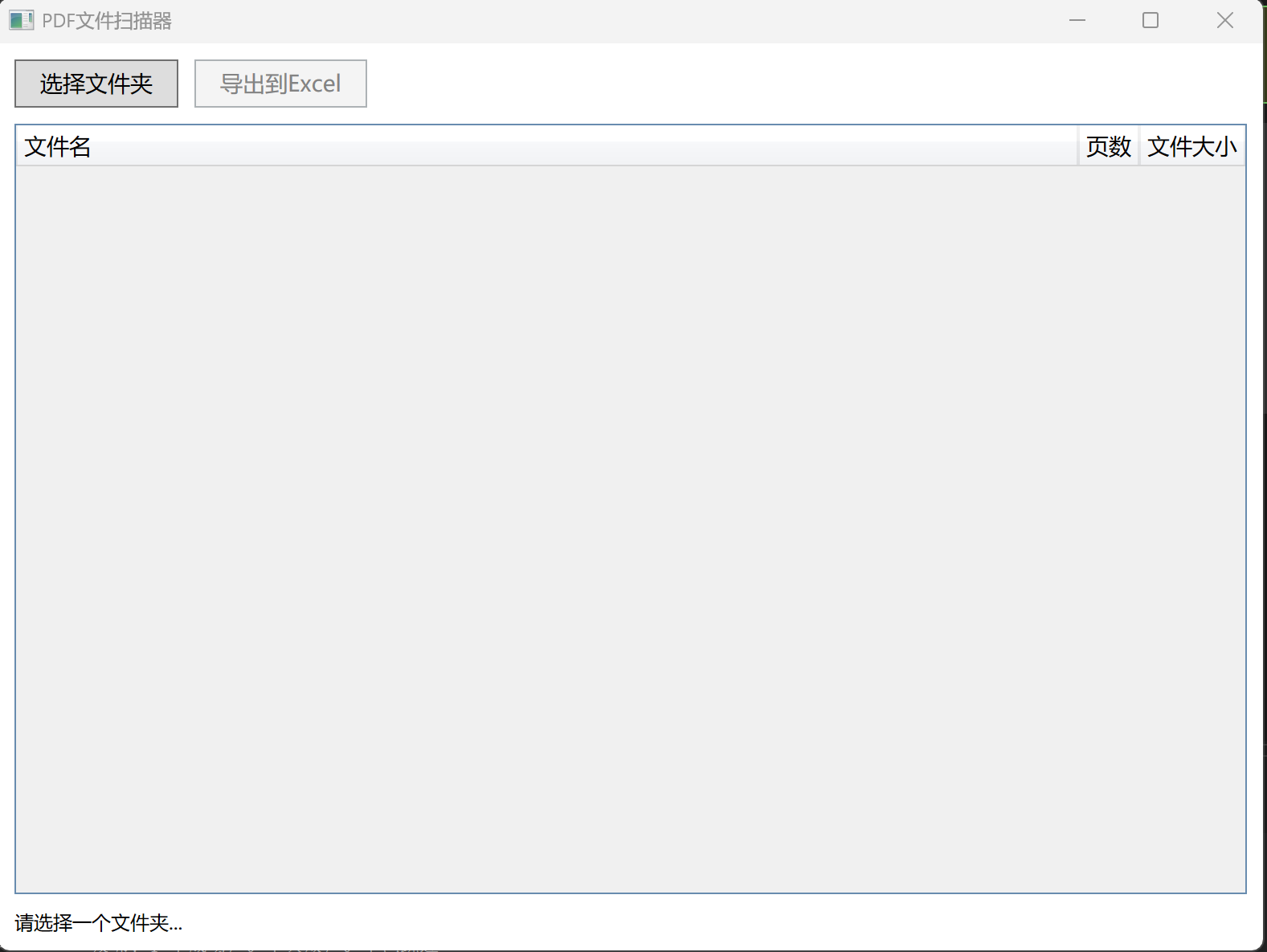
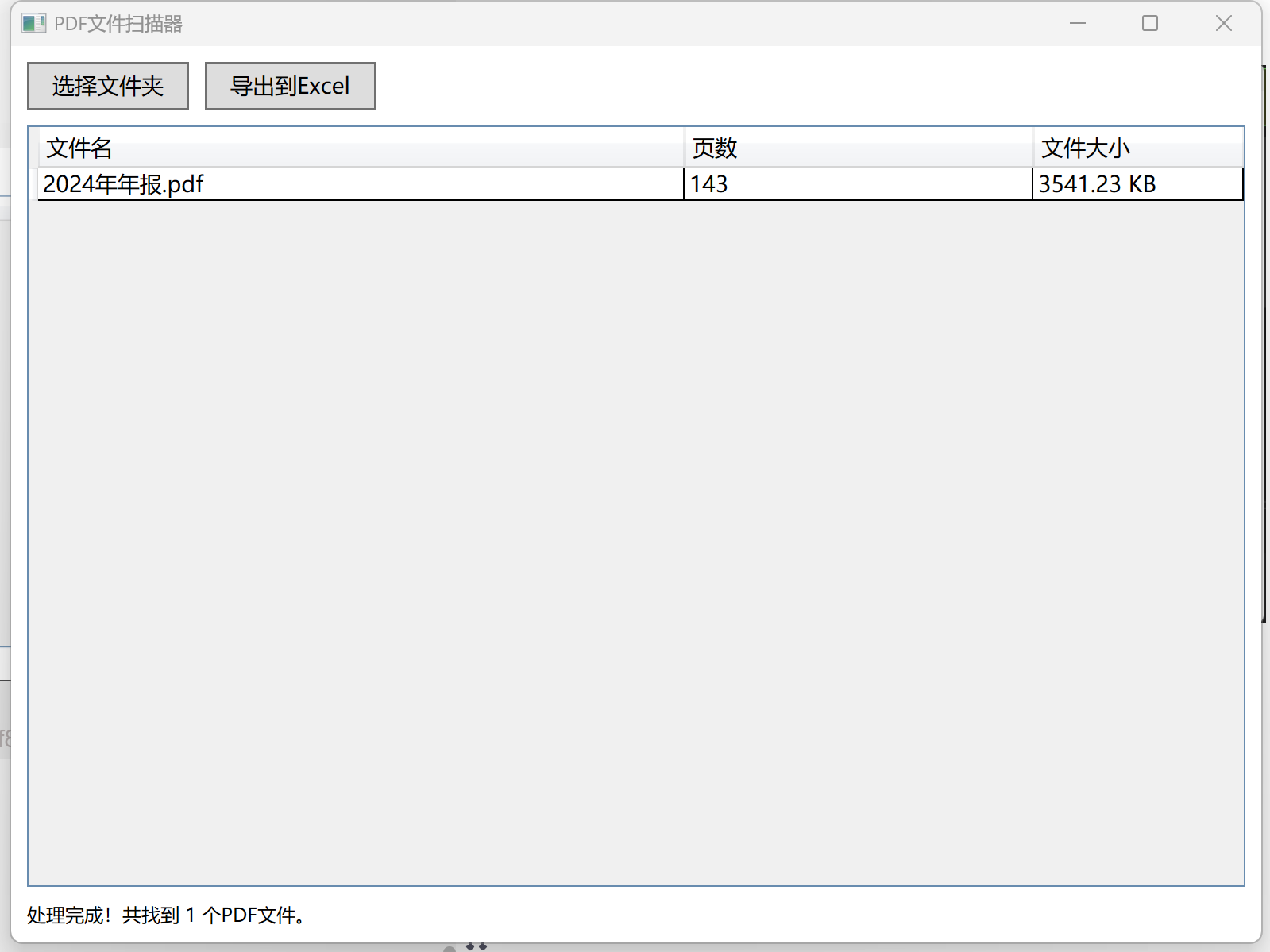
运行效果如下:
以上就是c# wpf实现读取文件夹中的pdf并显示其页数的操作指南的详细内容,更多关于c# wpf读取文件夹pdf并显示其页数的资料请关注代码网其它相关文章!





发表评论