
 我要评论
我要评论实际项目中有时会有根据填写的表单数据或者其他格式的数据,将数据自动填充到pdf文件中根据固定模板生成pdf文件的需求
利用pdfmake生成pdf文件
1.下载安装pdfmake第三方包
npm i pdfmake
2.封装生成pdf文件的共用配置
可以在utils文件夹下新建pdf文件夹,所有的pdf文件模板/共用配置等文件都放在该文件夹下
新建文件pdfutils.js,该文件是一些公用配置项
import pdfmake from 'pdfmake/build/pdfmake';
pdfmake.fonts={
	msyh:{
		italics: 'https://example.com/fonts/fontfile3.ttf',
    	bold: 'https://example.com/fonts/fontfile4.ttf',
	}
	//可以设置文件的字体
}
export const pdfmake = pdfmake
export const basedocdefinition={
//pdfmake中margin值的设置,4个值分别是[左,上,右,下]
	pagemargins:[40,70,40,40],//文档边距,不影响页眉页脚
	pagesize: 'a4', //设置纸张大小为a4
	pageorientation: 'portrait', //portrait:纵向; langscape:横向,默认是纵向的
	//默认文本设置,这里的属性都是比较常见的就不赘述了
	defaultstyle:{
		font: 'msyh',
		color: '#000000',
		bold: false,
		fontsize: 12,
		lineheight: 1.2
	}
}
//pdf展示图片,不能直接展示url,需要对文件进行转换
export async function getimageurl(url){
	const response=await fetch(url)
	const blob=await response.blob()
	return new promise((resolve,reject)=>{
		const reader=new filereader()
		reader.onload=()=>{
			const base64data=reader.result
			resolve(base64data)
		}
		reader.onerror=reject
		reader.readaddataurl(blob)
	})
}
3.生成pdf文件的文件模板内容
新建getpdfdoc.js文件,该文件是具体要生成文件的配置
import { pdfmake } from './pdfutils.js'
import { basedocdefinition, getimageurl } from './pdfutils.js'
//由于文件中某些数据是自动填充上去的,所以调用生成pdf的方法时要传填充的数据
export function getdocpdf=async(data){
	const docdefinition={
		...basedocdefinition,
		//独有配置,这里可以参考文档最后
		content:[
			//独有的配置
			...
		]
	}
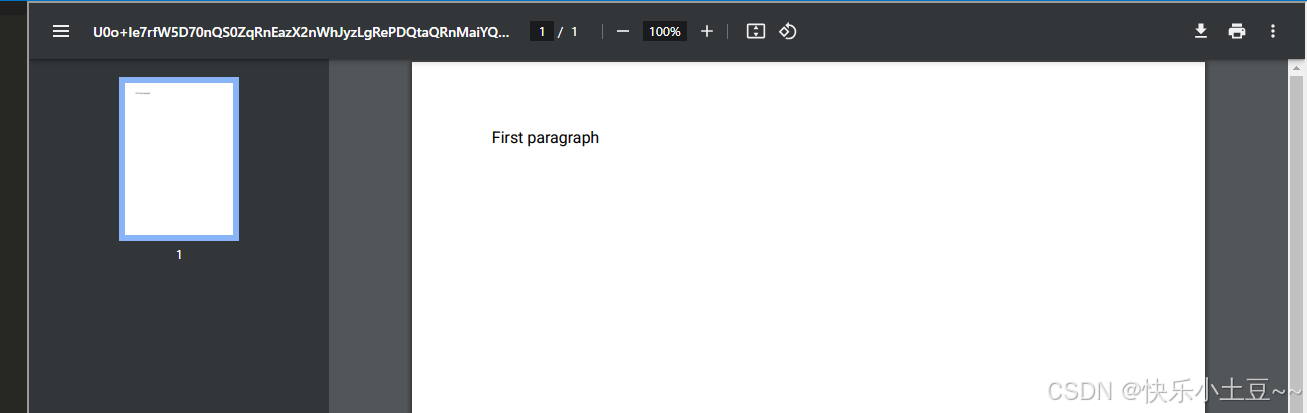
	pdfmake.createpdf(docdefinition).open()//生成pdf文件并打开,可以进行预览/导出
}
4.调用方法生成pdf
在需要的地方进行调用
例如:
<template>
...
<el-button @click='exportdoc'>导出pdf文件</el-button>
...
</template>
import { getdocpdf } from '@/utils/getpdfdoc.js'
<script>
export default {
	data(){
		return {
			form:{}
		}
	},
	methods:{
		async exportdoc(){
			await getdocpdf(this.form)
		}
	}
}
</script>
pdfmake的文档没有中文版的,这里我列举一些我用过的也是比较常用的配置
export function getdocpdf=async(data){
	const docdefinition={
		...basedocdefinition,
		//页眉
		header: {
      		absoluteposition: { x: 40, y: 10 },
      		stack: [
        		{ text: `${data.fullname}`, fontsize: 10, absoluteposition: { x: 0, y: 13 }, alignment: 'center' },
        		{
          			canvas: [{
            			type: 'line',
            			x1: 0,
            			y1: 30,
            			x2: 515,
            			y2: 30,
            			linewidth: 1,
            			absoluteposition: { x: 0, y: 10 }
          			}]
        		},// 分割线
      		],
    	},
    	//页脚
    	footer: function (currentpage, pagecount) {
      		return [
        		{
          			canvas: [
            			{
              				type: 'line',
              				x1: 40, y1: 0,
              				x2: 555, y2: 0,
              				linewidth: 1
            			}
          			]
        		},
        		{
          			text: `${data.fullname}\n` + currentpage,
          			alignment: 'center',
          			fontsize: 10,
          			margin: [0, 10]
        		}
      		];
    	},
		content:[
			//独有的配置
			...,
			//文本段落
			{
				text:'***',
				fontsize:16,//该段text的字体大小
				bold:true,//该段字体加粗
				lendingindent: 25//首行缩进
			},
			//表格
			{
				layout:{
					paddingtop: () => 5,
          			paddingbottom: () => 5,
          			paddingleft: () => 5,
          			paddingright: () => 5
				},
				table: {
          			widths: ['10%', '22%', '20%', '30%', '20%'],
          			body: [
            			[
            			//第一行的数据,即表格的表头
              				{ text: '序号', alignment: 'center' },
              				{ text: '姓名', alignment: 'center' },
              				{ text: '手机号', alignment: 'center' },
              				{ text: '性别', alignment: 'center' },
            			],
            			//后面的数据行,如果不是静态的数据,传入的数据展示我们可能还需要进行一下转换,转换成这里展示需要的数据格式
            			[
            				{ text: '1', alignment: 'center' },
              				{ text: '张三', alignment: 'center' },
              				{ text: '18888888888', alignment: 'center' },
              				{ text: '男', alignment: 'center' },
            			],
          			]
        		}
			},
			//左右布局
			{
				alignment: 'justify',
        		margin: [0, 20, 0, 5],
        		columns: [
          			{
          			//text可以直接是字符串,也可以是字符串数组
            			text: [
							'签字日期:','\u00a0\u00a0\u00a0\u00a0','年','\u00a0\u00a0\u00a0\u00a0','月','\u00a0\u00a0\u00a0\u00a0','日'//这里的\u00a0是导出来展示是空格
						],
            			fontsize: 12
          			},
          			{
            			text: '签字日期:','\u00a0\u00a0\u00a0\u00a0','年','\u00a0\u00a0\u00a0\u00a0','月','\u00a0\u00a0\u00a0\u00a0','日',
            			fontsize: 12
          			}
        		]
			},
			//如果需要换页,即下面的内容为新起一页的内容,可以通过给文本块加上pagebreak属性
			{
				text:' ',
				pagebreak:'after',//表示该文本块后换页
			},
			//如果需要展示像图片,或者文本块较多,要放在stack中,图片不能直接展示url,要进行格式转换
			stack:[
				{
					image: await getimageurl(data.url)
					width: 200,
				}
			]
		]
	}
	pdfmake.createpdf(docdefinition).open()//生成pdf文件并打开,可以进行预览/导出
}
页眉效果

页脚效果

到此这篇关于pdfmake生成pdf的使用的文章就介绍到这了,更多相关pdfmake pdf使用内容请搜索代码网以前的文章或继续浏览下面的相关文章希望大家以后多多支持代码网!






发表评论