
 我要评论
我要评论引言
在日常办公中,ppt文件往往因为图片过大而导致文件体积过大,不便于传输和存储。为了应对这一问题,我们可以使用python的wxpython图形界面库结合python-pptx和pillow,开发一个简单的pptx压缩工具。本文将详细介绍如何实现这一功能。
全部代码
import wx
import os
from pptx import presentation
from pil import image
import io

class compressorframe(wx.frame):
    def __init__(self):
        super().__init__(parent=none, title='pptx压缩工具')
        self.panel = wx.panel(self)
        self.create_ui()

    def create_ui(self):
        vbox = wx.boxsizer(wx.vertical)

        # 文件选择部分
        hbox1 = wx.boxsizer(wx.horizontal)
        self.file_path = wx.textctrl(self.panel, size=(300, -1))
        browse_btn = wx.button(self.panel, label='选择文件')
        browse_btn.bind(wx.evt_button, self.on_browse)
        hbox1.add(self.file_path, proportion=1, flag=wx.expand|wx.all, border=5)
        hbox1.add(browse_btn, flag=wx.all, border=5)

        # 压缩按钮
        compress_btn = wx.button(self.panel, label='开始压缩')
        compress_btn.bind(wx.evt_button, self.on_compress)

        # 进度条
        self.progress = wx.gauge(self.panel, range=100, size=(400, 25))

        # 状态文本
        self.status_text = wx.statictext(self.panel, label="")

        vbox.add(hbox1, flag=wx.expand|wx.all, border=5)
        vbox.add(compress_btn, flag=wx.align_center|wx.all, border=5)
        vbox.add(self.progress, flag=wx.expand|wx.all, border=5)
        vbox.add(self.status_text, flag=wx.expand|wx.all, border=5)

        self.panel.setsizer(vbox)
        self.fit()

    def on_browse(self, event):
        with wx.filedialog(self, "选择pptx文件", wildcard="powerpoint files (*.pptx)|*.pptx",
                         style=wx.fd_open | wx.fd_file_must_exist) as filedialog:
            if filedialog.showmodal() == wx.id_cancel:
                return
            path = filedialog.getpath()
            path = os.path.normpath(path.strip('"'))
            self.file_path.setvalue(path)

    def update_status(self, text):
        wx.callafter(self.status_text.setlabel, text)

    def on_compress(self, event):
        if not self.file_path.getvalue():
            wx.messagebox('请先选择文件', '提示', wx.ok | wx.icon_information)
            return

        input_path = self.file_path.getvalue().strip('"')
        input_path = os.path.normpath(input_path)

        if not os.path.exists(input_path):
            wx.messagebox('文件不存在,请检查路径', '错误', wx.ok | wx.icon_error)
            return

        output_path = self._get_output_path(input_path)

        try:
            self._compress_pptx(input_path, output_path)
            wx.messagebox('压缩完成!\n保存路径:' + output_path,
                         '成功', wx.ok | wx.icon_information)
        except exception as e:
            wx.messagebox(f'压缩过程中出错:{str(e)}',
                         '错误', wx.ok | wx.icon_error)
        finally:
            self.progress.setvalue(0)
            self.update_status("")

    def _get_output_path(self, input_path):
        directory = os.path.dirname(input_path)
        filename = os.path.basename(input_path)
        name, ext = os.path.splitext(filename)
        return os.path.join(directory, f"{name}_compressed{ext}")

    def _compress_pptx(self, input_path, output_path):
        try:
            prs = presentation(input_path)
        except exception as e:
            raise exception(f"无法打开pptx文件: {str(e)}")

        total_slides = len(prs.slides)
        processed_images = 0
        skipped_images = 0

        for i, slide in enumerate(prs.slides):
            self.update_status(f"正在处理第 {i+1}/{total_slides} 张幻灯片")

            shapes_with_images = []
            for shape in slide.shapes:
                if hasattr(shape, "image"):
                    shapes_with_images.append(shape)

            for shape in shapes_with_images:
                try:
                    # 获取图片数据
                    image_bytes = shape.image.blob

                    # 使用pil压缩图片
                    with image.open(io.bytesio(image_bytes)) as img:
                        # 转换rgba为rgb
                        if img.mode == 'rgba':
                            img = img.convert('rgb')

                        # 压缩图片
                        # 如果图片较大,调整尺寸
                        max_size = 800  # 最大尺寸为1024像素
                        if img.width > max_size or img.height > max_size:
                            ratio = min(max_size/img.width, max_size/img.height)
                            new_size = (int(img.width * ratio), int(img.height * ratio))
                            img = img.resize(new_size, image.lanczos)

                        output_buffer = io.bytesio()
                        img.save(output_buffer, format='jpeg', quality=10, optimize=true)

                        # 替换原图片
                        shape._element.blip.embed.rid = shape._element.blip.embed.rid
                        new_image = output_buffer.getvalue()

                        # 更新图片数据
                        image_part = shape.image
                        image_part._blob = new_image

                    processed_images += 1
                except exception as e:
                    print(f"处理图片时出错: {str(e)}")
                    skipped_images += 1
                    continue

            # 更新进度条
            progress = int((i + 1) / total_slides * 100)
            wx.callafter(self.progress.setvalue, progress)

        self.update_status(f"完成!成功处理 {processed_images} 张图片,跳过 {skipped_images} 张图片")

        try:
            prs.save(output_path)
        except exception as e:
            raise exception(f"保存文件时出错: {str(e)}")

def main():
    app = wx.app()
    frame = compressorframe()
    frame.show()
    app.mainloop()

if __name__ == '__main__':
    main()
环境准备
在开始之前,我们需要安装以下python库:
- wxpython:用于创建图形用户界面
- python-pptx:用于处理pptx文件
- pillow:用于图片压缩
安装命令:
pip install wxpython python-pptx pillow
代码结构
代码主要包括以下几个部分:
- 图形界面设计
- 文件选择与压缩功能
- 图片压缩逻辑
代码实现
导入必要模块
import wx
import os
from pptx import presentation
from pil import image
import io
创建主窗口
主窗口compressorframe继承自wx.frame,用于展示ui组件。
class compressorframe(wx.frame):
    def __init__(self):
        super().__init__(parent=none, title='pptx压缩工具')
        self.panel = wx.panel(self)
        self.create_ui()

    def create_ui(self):
        vbox = wx.boxsizer(wx.vertical)

        # 文件选择部分
        hbox1 = wx.boxsizer(wx.horizontal)
        self.file_path = wx.textctrl(self.panel, size=(300, -1))
        browse_btn = wx.button(self.panel, label='选择文件')
        browse_btn.bind(wx.evt_button, self.on_browse)
        hbox1.add(self.file_path, proportion=1, flag=wx.expand|wx.all, border=5)
        hbox1.add(browse_btn, flag=wx.all, border=5)

        # 压缩按钮
        compress_btn = wx.button(self.panel, label='开始压缩')
        compress_btn.bind(wx.evt_button, self.on_compress)

        # 进度条
        self.progress = wx.gauge(self.panel, range=100, size=(400, 25))

        # 状态文本
        self.status_text = wx.statictext(self.panel, label="")

        vbox.add(hbox1, flag=wx.expand|wx.all, border=5)
        vbox.add(compress_btn, flag=wx.align_center|wx.all, border=5)
        vbox.add(self.progress, flag=wx.expand|wx.all, border=5)
        vbox.add(self.status_text, flag=wx.expand|wx.all, border=5)

        self.panel.setsizer(vbox)
        self.fit()
文件选择功能
通过文件对话框让用户选择pptx文件。
def on_browse(self, event):
    with wx.filedialog(self, "选择pptx文件", wildcard="powerpoint files (*.pptx)|*.pptx",
                     style=wx.fd_open | wx.fd_file_must_exist) as filedialog:
        if filedialog.showmodal() == wx.id_cancel:
            return
        path = filedialog.getpath()
        self.file_path.setvalue(os.path.normpath(path.strip('"')))
压缩功能实现
压缩图片逻辑:
- 使用pillow库压缩ppt中的图片,将其转换为jpeg格式,并降低质量以减少文件大小。
- 限制图片的最大尺寸,保持图片的可视质量。
更新进度条与状态:
使用wx.gauge展示处理进度。
实时更新处理状态。
def _compress_pptx(self, input_path, output_path):
    prs = presentation(input_path)
    total_slides = len(prs.slides)
    processed_images = 0
    skipped_images = 0

    for i, slide in enumerate(prs.slides):
        self.update_status(f"正在处理第 {i+1}/{total_slides} 张幻灯片")

        shapes_with_images = [shape for shape in slide.shapes if hasattr(shape, "image")]

        for shape in shapes_with_images:
            try:
                image_bytes = shape.image.blob
                with image.open(io.bytesio(image_bytes)) as img:
                    if img.mode == 'rgba':
                        img = img.convert('rgb')
                    max_size = 800
                    if img.width > max_size or img.height > max_size:
                        ratio = min(max_size/img.width, max_size/img.height)
                        new_size = (int(img.width * ratio), int(img.height * ratio))
                        img = img.resize(new_size, image.lanczos)
                    output_buffer = io.bytesio()
                    img.save(output_buffer, format='jpeg', quality=10, optimize=true)
                    new_image = output_buffer.getvalue()
                    shape.image._blob = new_image
                processed_images += 1
            except exception as e:
                print(f"处理图片时出错: {str(e)}")
                skipped_images += 1
        wx.callafter(self.progress.setvalue, int((i + 1) / total_slides * 100))

    self.update_status(f"完成!成功处理 {processed_images} 张图片,跳过 {skipped_images} 张图片")
    prs.save(output_path)
主函数
启动wxpython应用程序。
def main():
app = wx.app()
frame = compressorframe()
frame.show()
app.mainloop()
if __name__ == '__main__':
main()
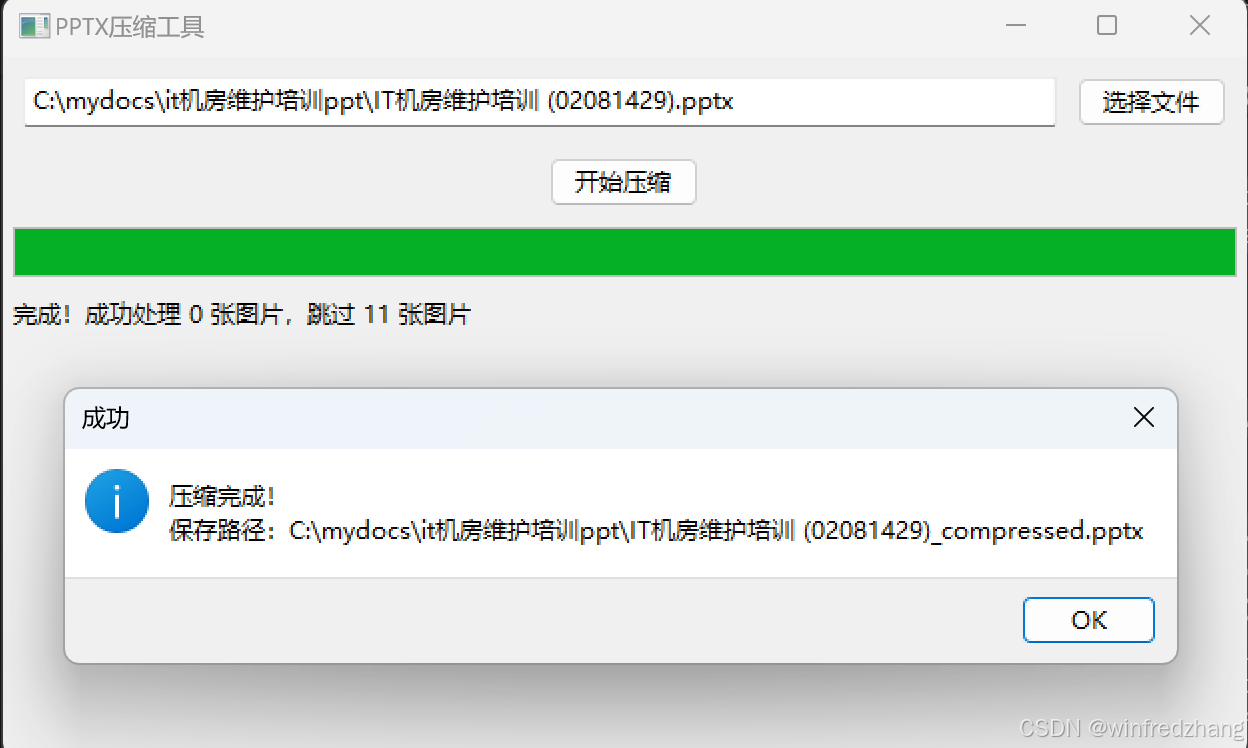
运行结果
到此这篇关于基于python开发pptx压缩工具的文章就介绍到这了,更多相关python pptx压缩内容请搜索代码网以前的文章或继续浏览下面的相关文章希望大家以后多多支持代码网!



发表评论