
 我要评论
我要评论apache pdfbox 是一个开源的 java 库,用于处理 pdf 文档。它提供了一系列强大的功能,包括创建、渲染、拆分、合并、加密、解密 pdf 文件,以及从 pdf 中提取文本和元数据等。pdfbox 支持 pdf 1.7 标准,并且兼容大多数现代 pdf 格式和特性。
1、使用 maven 集成 pdfbox
在 pom.xml 文件中引入依赖
<dependency>
    <groupid>org.apache.pdfbox</groupid>
    <artifactid>pdfbox</artifactid>
    <version>2.0.24</version> <!-- 请检查最新的版本 -->
</dependency>
2、编写工具类
package cn.iocoder.yudao.module.contract.service.content;

import com.fasterxml.jackson.databind.objectmapper;
import org.apache.pdfbox.pdmodel.pddocument;
import org.apache.pdfbox.pdmodel.pdpage;
import org.apache.pdfbox.pdmodel.pdpagecontentstream;
import org.apache.pdfbox.pdmodel.common.pdrectangle;
import org.apache.pdfbox.pdmodel.graphics.image.pdimagexobject;
import org.apache.pdfbox.rendering.pdfrenderer;
import org.springframework.http.responseentity;

import javax.imageio.imageio;
import java.awt.image.bufferedimage;
import java.io.bytearrayinputstream;
import java.io.bytearrayoutputstream;
import java.io.ioexception;
import java.util.arraylist;
import java.util.base64;
import java.util.list;

public class pdfboxutil {

    /**
     * 加载 pdf 文档
     */
    public static pddocument loadpdf(byte[] input) throws ioexception {
        return pddocument.load(input);
    }

    /**
     * 添加印章到 pdf 文档中
     *
     * @param document       pdf 文档对象
     * @param imagebytearray 印章图像的二进制数据
     * @param x              横坐标
     * @param y              纵坐标
     * @param h              高度
     * @param pageidx        页码
     * @throws ioexception 异常
     */
    public static void addstamptopdf(pddocument document, byte[] imagebytearray, int x, int y, int h, int pageidx) throws ioexception {
        // 加载签章图像
        pdimagexobject pdimage = pdimagexobject.createfrombytearray(document, imagebytearray, "签章");

        // 获取 pdf 文档的第一个页面
        pdpage page = document.getpage(pageidx);

        // 计算签章图像的尺寸
        float desiredheight = h; // 目标高度
        float scale = desiredheight / pdimage.getheight();

        // 创建一个内容流以添加签章
        try (pdpagecontentstream contentstream = new pdpagecontentstream(document, page, pdpagecontentstream.appendmode.append, true, true)) {
            // 在 pdf 页面上绘制签章图像
            contentstream.drawimage(pdimage, x, y, pdimage.getwidth() * scale, pdimage.getheight() * scale);
        }

        // 可选:也可以向 pdf 添加一个签名字段
//        addsignaturefield(document);
    }

    /**
     * 将 bufferedimage 转换为字节数组
     *
     * @param image 要转换的图像
     * @return 字节数组
     */
    private static byte[] imagetobytes(bufferedimage image) {
        try (bytearrayoutputstream os = new bytearrayoutputstream()) {
            imageio.write(image, "png", os);
            return os.tobytearray();
        } catch (ioexception e) {
            throw new runtimeexception("failed to convert image to bytes", e);
        }
    }

    /**
     * 裁剪图像
     *
     * @param image 要裁剪的图像
     * @param page pdf 页面
     * @param x 开始裁剪的横坐标
     * @param y 开始裁剪的纵坐标
     * @param w 需要裁剪的宽度
     * @param h 需要裁剪的高度
     * @return 裁剪后的图片
     */
    private static bufferedimage cropimage(bufferedimage image, pdpage page, int x, int y, int w, int h) {
        pdrectangle mediabox = pdrectangle.a4; // 使用默认的 a4 大小

        // 将 pdf 单位转换为图像坐标
        int width = (int) (mediabox.getwidth() * (image.getwidth() / page.getmediabox().getwidth()));
        int height = (int) (mediabox.getheight() * (image.getheight() / page.getmediabox().getheight()));

        // 裁剪图像
        return image.getsubimage(x, y, width - w, height - h);
    }

    /**
     * 将 pdf 转换为多个图片
     *
     * @param pdfbytes pdf 二进制数据
     * @param dpi      dpi 值
     * @return 裁剪后的图片列表
     * @throws ioexception 异常
     */
    public static list<byte[]> convertpdftoimages(byte[] pdfbytes, int numberofpages, int dpi, int x, int y, int w, int h) throws ioexception {
        list<byte[]> croppedimages = new arraylist<>();
        try (pddocument document = pddocument.load(new bytearrayinputstream(pdfbytes))) {
            pdfrenderer renderer = new pdfrenderer(document);
            if (numberofpages == 0) {
                numberofpages = document.getnumberofpages();
            }

            for (int i = 0; i < numberofpages; i++) {
                // 渲染页面
                bufferedimage image = renderer.renderimagewithdpi(i, dpi); // 300 dpi
                // 裁剪图像
                bufferedimage croppedimage = cropimage(image, document.getpage(i), x, y, w, h);
                byte[] croppedimagebytes = imagetobytes(croppedimage);
                croppedimages.add(croppedimagebytes);
            }
        }
        return croppedimages;
    }

    /**
     * 将 pdf 转换为 base64 编码的 json
     *
     * @param filecontent pdf 二进制数据
     * @param x 开始裁剪的横坐标
     * @param y 开始裁剪的纵坐标
     * @param w 需要裁剪的宽度
     * @param h 需要裁剪的高度
     * @return base64 编码的 json
     * @throws exception 异常
     */
    public static responseentity<string> convertpdftobase64(byte[] filecontent, int x, int y, int w, int h) throws exception {
        list<byte[]> imagebyteslist = convertpdftoimages(filecontent, 0, 300, x, y, w, h);

        list<string> base64images = new arraylist<>();
        for (byte[] imagebytes : imagebyteslist) {
            string base64image = base64.getencoder().encodetostring(imagebytes);
            base64images.add(base64image);
        }
        objectmapper mapper = new objectmapper();
        string jsonresult = mapper.writevalueasstring(base64images);
        return responseentity.ok().body(jsonresult);
    }
}
3、编写控制器用于浏览器直接打开
第五步会编写控制器用于在 vue 前端预览 pdf 文件
/**
     * 测试添加数字签名
     *
     * @param filename 文件名
     * @param x x坐标
     * @param y y坐标
     * @param h 高度
     * @param i 宽度
     */
    @getmapping("/stamp/{filename}/p")
    @parameter(name = "x", description = "添加签名的 x 坐标", required = true, example = "x")
    @parameter(name = "y", description = "添加签名的 y 坐标", required = true, example = "y")
    @parameter(name = "h", description = "签名的显示高度", required = true, example = "h")
    @parameter(name = "i", description = "签名所在页数下标", required = true, example = "i")
    public responseentity<bytearrayresource> stamptest(@pathvariable string filename, @requestparam("x") integer x, @requestparam("y") integer y,
                                                    @requestparam("h") integer h, @requestparam("i") integer i) throws exception {
        // 从数据库中获取文件内容,这里需要修改为你们自己的获取方式来获取源 pdf 文件的字节数组
        byte[] filecontent = fileapi.getfilecontent(4l, filename);
        bytearrayoutputstream out = new bytearrayoutputstream();

        // 添加数字签名
        try (pddocument document = pdfboxutil.loadpdf(filecontent)) {
            // 这里需要修改为你们自己的获取方式来获取签名文件的字节数组
            byte[] imagebytearray = fileapi.getfilecontent(4l, "2c095928083c5ee82e6e229089892191d7790a3a42616dfd5a49daae68c27f41.png");
            pdfboxutil.addstamptopdf(document, imagebytearray, x, y, h, i);
            document.save(out);
        } catch (ioexception e) {
            e.printstacktrace();
        }

        // 创建 bytearrayresource
        bytearrayresource resource = new bytearrayresource(out.tobytearray());

        return responseentity.ok()
                .header(httpheaders.content_disposition, "inline; filename=\"" + filename + "\"")
                .contenttype(mediatype.application_pdf)
                .body(resource);
    }
4、浏览器测试
直接打开连接http://ip:端口/你们自己的控制器前缀/stamp/文件名/p?x=100&y=200&h=80&i=1进行测试
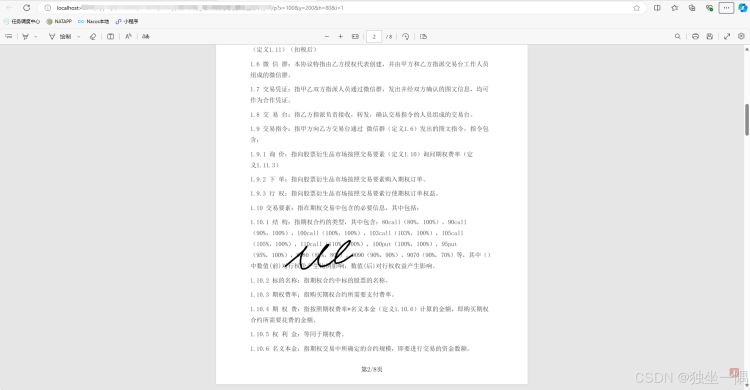
5、编写控制器用于在 vue 前端预览 pdf 文件
我这边在预览的时候不想保留边距、页眉、页脚的数据,所以有裁剪参数,不需要的话需要自行修改
/**
     * 根据合约名称获取合约 pdf 文件,并返回图片的 base64 编码
     *
     * @param filename合约标识
     * @return 图片的 base64 编码
     */
    @getmapping(value = "/get/{filename}", produces = mediatype.image_png_value)
    @parameter(name = "x", description = "每一页开始裁剪的 x 横坐标", required = true, example = "x")
    @parameter(name = "y", description = "每一页开始裁剪的 y 纵坐标", required = true, example = "y")
    @parameter(name = "h", description = "每一页需要裁剪掉的高度 h", required = true, example = "h")
    @parameter(name = "w", description = "每一个需要裁剪掉的宽度 w", required = true, example = "w")
    public responseentity<string> getpageimage(@pathvariable string filename, @requestparam("x") int x, @requestparam("y") int y,
                                                            @requestparam("h") int h, @requestparam("w") int w) {

        // 从数据库中获取文件内容,这里需要修改为你们自己的获取方式来获取源 pdf 文件的字节数组
        byte[] filecontent = fileapi.getfilecontent(4l, filename);

        try {
            return pdfboxutil.convertpdftobase64(filecontent, x, y, w, h);
        } catch (ioexception e) {
            throw new runtimeexception("获取 pdf 文件截图异常", e);
        } catch (exception e) {
            throw new runtimeexception("读取 pdf 文件异常", e);
        }
    }
6、编写 vue 代码
<template>
  <dialog :title="dialogtitle" v-model="dialogvisible">
    <div v-if="formloading">{{message}}</div>
    <div id="pdf-container">
    </div>
  </dialog>
</template>
<script setup lang="ts">

defineoptions({ name: 'contentwxpreview' })

const dialogvisible = ref(false) // 弹窗的是否展示
const dialogtitle = ref('') // 弹窗的标题
const formloading = ref(false) // 表单的加载中
const message = ref('数据正在加载请稍后 ... ...')

/** 打开弹窗 */
const open = async (title: string, code: string) => {
  dialogvisible.value = true
  dialogtitle.value = title + '_预览'
  formloading.value = true
  try {
    fetch('http://ip:端口/你们自己的控制器前缀/stamp/文件名/p?x=250&y=188&w=520&h=385', {
        method: 'get',
        headers: {
            'content-type': 'application/octet-stream'
        }
    })
    .then(response => response.text())
    .then(base64images => {
        const container = document.getelementbyid('pdf-container')
        if (container) {
          container.innerhtml = '' // 清空容器

          const images = json.parse(base64images)
          images.foreach(base64image => {
              let img = document.createelement('img')
              img.src = `data:image/png;base64,${base64image}`
              container.appendchild(img)
          })
        }
        formloading.value = false
    })
  } finally {
    formloading.value = false
  }
}
defineexpose({ open }) // 提供 open 方法,用于打开弹窗
</script>

<style lang="scss">
#pdf-container {
  display: flex;
  flex-direction: column;
  align-items: center;
}

#pdf-container > img {
  max-width: 100%;
}
</style>
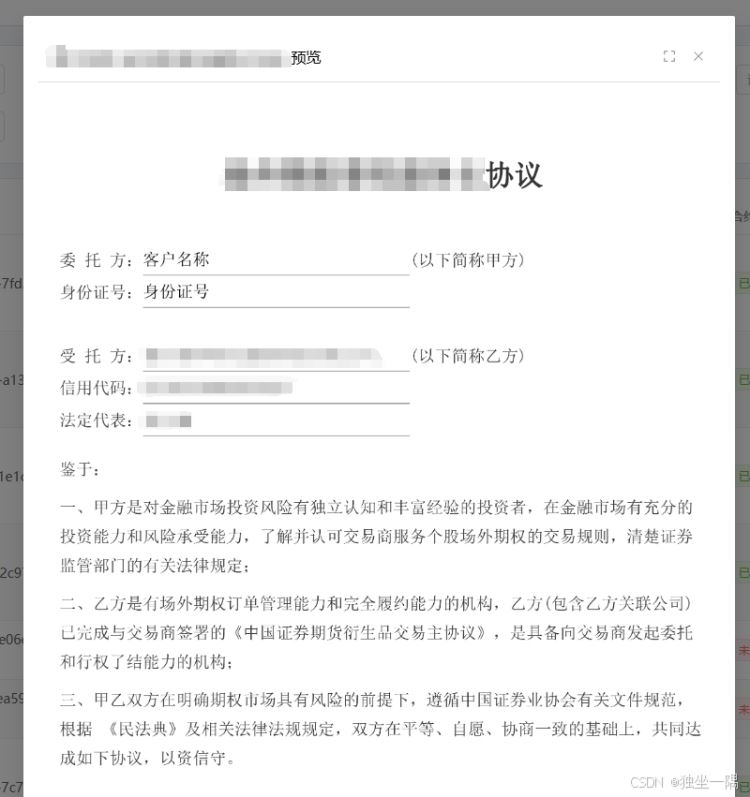
7、预览显示
扩展:虽然 pdfbox 很强大,但是在读取文件、文件识别、文字替换等方面使用起来不是特别方便,需要有一定的学习成本。对于我这边偶尔开发 pdf 文档处理半路子来说太难了,所以会在springboot集成spirepdf实现文本替换功能_java_代码网 (jb51.net)说明如何使用 spider.pdf 进行文本替换
以上就是springboot集成pdfbox实现电子签章的代码详解的详细内容,更多关于springboot pdfbox电子签章的资料请关注代码网其它相关文章!




发表评论