
 我要评论
我要评论效果图
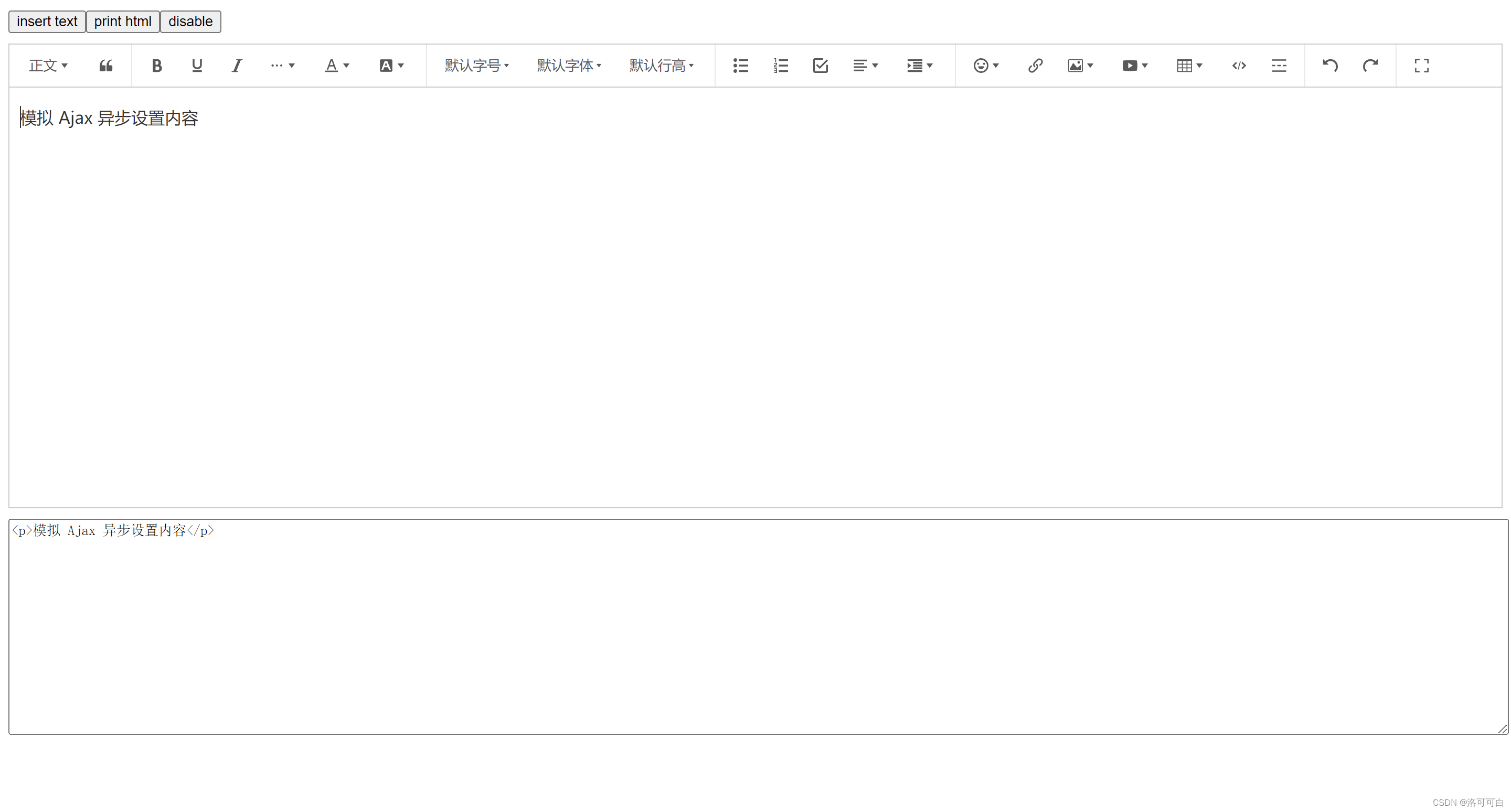
在vue项目中使用wangeditor构建富文本编辑器,您需要遵循以下步骤来集成和使用这个流行的编辑器:
步骤 1: 安装 wangeditor
首先,您需要在vue项目中安装wangeditor。可以通过npm来完成安装:
yarn add @wangeditor/editor
# 或者 npm install @wangeditor/editor --save

yarn add @wangeditor/editor-for-vue@next
# 或者 npm install @wangeditor/editor-for-vue@next --save
步骤 2: 引入 wangeditor 到您的组件
在您希望使用富文本编辑器的vue组件中,引入wangeditor:
import '@wangeditor/editor/dist/css/style.css';// 引入编辑器的css样式
import { onbeforeunmount, ref, shallowref, onmounted } from 'vue';
import { editor, toolbar } from '@wangeditor/editor-for-vue';
步骤 3: 创建编辑器实例和响应式数据
在vue组件的mounted生命周期钩子中,创建wangeditor的实例,并将其绑定到指定的dom元素上:
export default {
  components: { editor, toolbar },
  setup() {
    // 编辑器实例,必须用 shallowref,重要!
    const editorref = shallowref();

    // 内容 html
    const valuehtml = ref('<p>hello</p>');

    // 模拟 ajax 异步获取内容
    onmounted(() => {
      settimeout(() => {
        valuehtml.value = '<p>模拟 ajax 异步设置内容</p>';
      }, 1500);
    });

    const toolbarconfig = {};
    const editorconfig = { placeholder: '请输入内容...' };

    // 组件销毁时,也及时销毁编辑器,重要!
    onbeforeunmount(() => {
      const editor = editorref.value;
      if (editor == null) return;

      editor.destroy();
    });

    // 编辑器回调函数
    const handlecreated = (editor) => {
      console.log('created', editor);
      editorref.value = editor; // 记录 editor 实例,重要!
    };
    const handlechange = (editor) => {
      console.log('change:', editor.gethtml());
    };
    const handledestroyed = (editor) => {
      console.log('destroyed', editor);
    };
    const handlefocus = (editor) => {
      console.log('focus', editor);
    };
    const handleblur = (editor) => {
      console.log('blur', editor);
    };
    const customalert = (info, type) => {
      alert(`【自定义提示】${type} - ${info}`);
    };
    const custompaste = (editor, event, callback) => {
      console.log('clipboardevent 粘贴事件对象', event);

      // 自定义插入内容
      editor.inserttext('xxx');

      // 返回值(注意,vue 事件的返回值,不能用 return)
      callback(false); // 返回 false ,阻止默认粘贴行为
      // callback(true) // 返回 true ,继续默认的粘贴行为
    };

    const inserttext = () => {
      const editor = editorref.value;
      if (editor == null) return;

      editor.inserttext('hello world');
    };

    const printhtml = () => {
      const editor = editorref.value;
      if (editor == null) return;
      console.log(editor.gethtml());
    };

    const disable = () => {
      const editor = editorref.value;
      if (editor == null) return;
      editor.disable()
    };

    return {
      editorref,
      mode: 'default',
      valuehtml,
      toolbarconfig,
      editorconfig,
      handlecreated,
      handlechange,
      handledestroyed,
      handlefocus,
      handleblur,
      customalert,
      custompaste,
      inserttext,
      printhtml,
      disable
    };
  },
};
步骤 4: 在模板中添加编辑器容器
在vue组件的模板中,添加一个容器元素来承载wangeditor:
    <div style="border: 1px solid #ccc; margin-top: 10px">
      <toolbar
        :editor="editorref"
        :defaultconfig="toolbarconfig"
        :mode="mode"
        style="border-bottom: 1px solid #ccc"
      />
      <editor
        :defaultconfig="editorconfig"
        :mode="mode"
        v-model="valuehtml"
        style="height: 400px; overflow-y: hidden"
        @oncreated="handlecreated"
        @onchange="handlechange"
        @ondestroyed="handledestroyed"
        @onfocus="handlefocus"
        @onblur="handleblur"
        @customalert="customalert"
        @custompaste="custompaste"
      />
    </div>
步骤 5: 配置 wangeditor(可选)
wangeditor提供了多种配置选项,您可以根据需要进行配置。例如,设置编辑器的自定义菜单、上传图片的接口等:
// const editorconfig = { placeholder: '请输入内容...' };
    // 初始化 menu_conf 属性
    const editorconfig = {                       // js 语法
      menu_conf: {},
      placeholder: '请输入内容...'
      // 其他属性...
    }

    // 修改 uploadimage 菜单配置
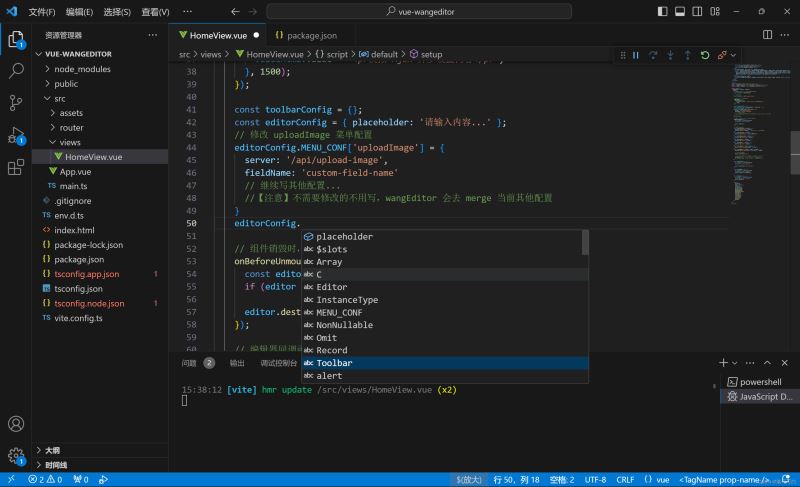
    editorconfig.menu_conf['uploadimage'] = {
      server: '/api/upload-image',
      fieldname: 'custom-field-name'
      // 继续写其他配置...

      //【注意】不需要修改的不用写,wangeditor 会去 merge 当前其他配置
    }
步骤 6: 获取编辑器内容(可选)
您可以通过editor.txt.html()方法获取编辑器的html内容,或者通过editor.txt.text()获取纯文本内容:
    const printhtml = () => {
      const editor = editorref.value;
      if (editor == null) return;
      console.log(editor.gethtml());
    };
步骤 7: 清理资源
当组件销毁时,确保释放编辑器资源,避免内存泄漏:
    // 组件销毁时,也及时销毁编辑器,重要!
    onbeforeunmount(() => {
      const editor = editorref.value;
      if (editor == null) return;

      editor.destroy();
    });
全部代码
<template>
  <div>
    <div>
      <button @click="inserttext">insert text</button>
      <button @click="printhtml">print html</button>
      <button @click="disable">disable</button>
    </div>
    <div style="border: 1px solid #ccc; margin-top: 10px">
      <toolbar :editor="editorref" :defaultconfig="toolbarconfig" :mode="mode" style="border-bottom: 1px solid #ccc" />
      <editor :defaultconfig="editorconfig" :mode="mode" v-model="valuehtml" style="height: 400px; overflow-y: hidden"
        @oncreated="handlecreated" @onchange="handlechange" @ondestroyed="handledestroyed" @onfocus="handlefocus"
        @onblur="handleblur" @customalert="customalert" @custompaste="custompaste" />
    </div>
    <div style="margin-top: 10px">
      <textarea v-model="valuehtml" readonly style="width: 100%; height: 200px; outline: none"></textarea>
    </div>
  </div>
</template>

<script>
import '@wangeditor/editor/dist/css/style.css';
import { onbeforeunmount, ref, shallowref, onmounted } from 'vue';
import { editor, toolbar } from '@wangeditor/editor-for-vue';

export default {
  components: { editor, toolbar },
  setup() {
    // 编辑器实例,必须用 shallowref,重要!
    const editorref = shallowref();

    // 内容 html
    const valuehtml = ref('<p>hello</p>');

    // 模拟 ajax 异步获取内容
    onmounted(() => {
      settimeout(() => {
        valuehtml.value = '<p>模拟 ajax 异步设置内容</p>';
      }, 1500);
    });

    const toolbarconfig = {};
    // const editorconfig = { placeholder: '请输入内容...' };
    // 初始化 menu_conf 属性
    const editorconfig = {                       // js 语法
      menu_conf: {},
      placeholder: '请输入内容...'
      // 其他属性...
    }

    // 修改 uploadimage 菜单配置
    editorconfig.menu_conf['uploadimage'] = {
      server: '/api/upload-image',
      fieldname: 'custom-field-name'
      // 继续写其他配置...

      //【注意】不需要修改的不用写,wangeditor 会去 merge 当前其他配置
    }


    // 组件销毁时,也及时销毁编辑器,重要!
    onbeforeunmount(() => {
      const editor = editorref.value;
      if (editor == null) return;

      editor.destroy();
    });

    // 编辑器回调函数
    const handlecreated = (editor) => {
      console.log('created', editor);
      editorref.value = editor; // 记录 editor 实例,重要!
    };
    const handlechange = (editor) => {
      console.log('change:', editor.gethtml());
    };
    const handledestroyed = (editor) => {
      console.log('destroyed', editor);
    };
    const handlefocus = (editor) => {
      console.log('focus', editor);
    };
    const handleblur = (editor) => {
      console.log('blur', editor);
    };
    const customalert = (info, type) => {
      alert(`【自定义提示】${type} - ${info}`);
    };
    const custompaste = (editor, event, callback) => {
      console.log('clipboardevent 粘贴事件对象', event);

      // 自定义插入内容
      editor.inserttext('xxx');

      // 返回值(注意,vue 事件的返回值,不能用 return)
      callback(false); // 返回 false ,阻止默认粘贴行为
      // callback(true) // 返回 true ,继续默认的粘贴行为
    };

    const inserttext = () => {
      const editor = editorref.value;
      if (editor == null) return;

      editor.inserttext('hello world');
    };

    const printhtml = () => {
      const editor = editorref.value;
      if (editor == null) return;
      console.log(editor.gethtml());
    };

    const disable = () => {
      const editor = editorref.value;
      if (editor == null) return;
      editor.disable()
    };

    return {
      editorref,
      mode: 'default',
      valuehtml,
      toolbarconfig,
      editorconfig,
      handlecreated,
      handlechange,
      handledestroyed,
      handlefocus,
      handleblur,
      customalert,
      custompaste,
      inserttext,
      printhtml,
      disable
    };
  },
};
</script>
通过以上步骤,您可以在vue项目中轻松地集成和使用wangeditor作为富文本编辑器。wangeditor提供了丰富的功能和良好的定制性,可以满足大多数富文本编辑的需求。
到此这篇关于vue使用wangeditor创建富文本编辑器的完整指南的文章就介绍到这了,更多相关vue wangeditor富文本编辑器内容请搜索代码网以前的文章或继续浏览下面的相关文章希望大家以后多多支持代码网!





发表评论