
 我要评论
我要评论添加、编辑资源文件
编辑res->values->strings.xml文件,内容如下:
<resources>
    <string name="app_name">mynotebook</string>
    <string name="title">记事本</string>
    <string name="btn_confirm">确定</string>
    <string name="btn_cancel">取消</string>
    <string name="btn_add">添加</string>
    <string name="btn_save">保存</string>
    <string name="btn_return">返回</string>
    <string name="save_succ">保存成功!</string>
    <string name="save_fail">保存失败!标题或内容不能为空!</string>
</resources>在res->drawable目录下添加shape.xml文件用于实现按钮的圆角效果,内容如下:
<?xml version="1.0" encoding="utf-8"?>
<shape xmlns:android="http://schemas.android.com/apk/res/android"
    android:shape="rectangle" >
    <solid android:color="#1c82c4"/>
    <!-- android:radius 按钮四角弧形的半径 -->
    <corners android:radius="8dip" />
    <!-- padding:button里面的文字与button边界的内边距 -->
    <padding
        android:bottom="2dp"
        android:left="2dp"
        android:right="2dp"
        android:top="2dp" />
</shape>编辑res->values->style.xml文件,在其中定义全屏风格,美化界面。内容如下:
<resources>
    <!-- base application theme. -->
    <style name="apptheme" parent="theme.appcompat.light.darkactionbar">
        <!-- customize your theme here. -->
        <item name="colorprimary">@color/colorprimary</item>
        <item name="colorprimarydark">@color/colorprimarydark</item>
        <item name="coloraccent">@color/coloraccent</item>
    </style>

    <style name="fulltheme" parent="theme.appcompat.light.noactionbar">
        <item name="android:windownotitle">true</item>
        <item name="windowactionbar">false</item>
        <item name="android:windowfullscreen">true</item>
        <item name="android:windowcontentoverlay">@null</item>
    </style>
</resources>
在androidmanifest.xml文件中应用全屏风格。更改application元素的android:theme属性即可。
<?xml version="1.0" encoding="utf-8"?>
<manifest xmlns:android="http://schemas.android.com/apk/res/android"
    package="com.zys.mynotebook">
    <application
        android:allowbackup="true"
        android:icon="@mipmap/ic_launcher"
        android:label="@string/app_name"
        android:roundicon="@mipmap/ic_launcher_round"
        android:supportsrtl="true"
        android:theme="@style/fulltheme">
        <activity android:name=".editactivity"></activity>
        <activity android:name=".mainactivity">
            <intent-filter>
                <action android:name="android.intent.action.main" />
                <category android:name="android.intent.category.launcher" />
            </intent-filter>
        </activity>
    </application>
</manifest>
更改程序图标。 略。
新建一个activity,editactivity作为笔记编辑、浏览界面
先保留自动生成的布局文件activity_edit.xml文件。
编辑、添加布局文件
编辑res->layout路径下的主界面布局文件activity_main.xml,主要利用listview来显示所有笔记的标题和事件,内容如下:
<?xml version="1.0" encoding="utf-8"?>
<linearlayout xmlns:android="http://schemas.android.com/apk/res/android"
    xmlns:tools="http://schemas.android.com/tools"
    android:layout_width="match_parent"
    android:layout_height="match_parent"
    android:orientation="vertical"
    tools:context=".mainactivity">
    <linearlayout
        android:layout_width="match_parent"
        android:layout_height="48dp"
        android:background="#03aeda"
        android:orientation="horizontal">
        <!-- 图标-->
        <imageview
            android:src="@drawable/note_icon"
            android:layout_width="40dp"
            android:layout_height="40dp"
            android:layout_margin="2dp"/>
        <textview
            android:id="@+id/music_list_title"
            android:layout_width="wrap_content"
            android:layout_height="40dp"
            android:layout_marginbottom="6dp"
            android:text="@string/title"
            android:textsize="16dp"
            android:textcolor="#ffffff"
            android:paddingleft="10dp"
            android:layout_marginleft="8dp"
            android:layout_margintop="3dp"
            android:gravity="center_vertical" />
        <linearlayout
            android:layout_width="fill_parent"
            android:layout_height="fill_parent"
            android:orientation="vertical"
            android:padding="2dp">
            <button
                android:id="@+id/btn_add"
                android:layout_width="50dp"
                android:layout_height="40dp"
                android:text="@string/btn_add"
                android:background="@drawable/shape"
                android:textcolor="#b9e3fd"
                android:layout_gravity="right"
                android:layout_marginright="8dp"
                android:layout_margintop="2dp" />
        </linearlayout>
    </linearlayout>
    <listview
        android:id="@+id/note_list"
        android:layout_width="match_parent"
        android:layout_height="0dp"
        android:layout_weight="1" />
</linearlayout>
添加在res->layout目录下添加布局文件item_layout.xml文件,作为主界面中listview的每个item的布局,内容如下:
<?xml version="1.0" encoding="utf-8"?>
<linearlayout
    xmlns:android="http://schemas.android.com/apk/res/android"
    android:layout_width="match_parent"
    android:layout_height="70dp"
    android:padding="5dp"
    android:orientation="horizontal">
    <imageview
        android:id="@+id/rand_icon"
        android:layout_width="50dp"
        android:layout_height="50dp"
        android:padding="2dp"
        android:layout_margin="4dp"/>
    <linearlayout
        android:layout_width="match_parent"
        android:layout_height="60dp"
        android:layout_marginleft="8dp"
        android:orientation="vertical">
        <textview
            android:id="@+id/item_note_title"
            android:layout_width="match_parent"
            android:layout_height="0dp"
            android:layout_weight="1.5"
            android:textsize="22sp"
            android:textcolor="#e3633a"
            android:gravity="center_vertical"
            android:singleline="true"/>
        <textview
            android:id="@+id/item_note_date"
            android:layout_width="match_parent"
            android:layout_height="0dp"
            android:layout_weight="1"
            android:textsize="16sp"
            android:gravity="center_vertical"
            android:singleline="true"/>
    </linearlayout>
</linearlayout>
编辑editactivity的布局文件activity_edit.xml,内容如下:
<?xml version="1.0" encoding="utf-8"?>
<linearlayout
    xmlns:android="http://schemas.android.com/apk/res/android"
    xmlns:tools="http://schemas.android.com/tools"
    android:layout_width="match_parent"
    android:layout_height="match_parent"
    android:orientation="vertical"
    tools:context=".editactivity">
    <linearlayout
        android:layout_width="match_parent"
        android:layout_height="48dp"
        android:background="#03aeda"
        android:orientation="horizontal">
        <!-- 图标-->
        <imageview
            android:src="@drawable/note_icon"
            android:layout_width="40dp"
            android:layout_height="40dp"
            android:layout_margin="2dp"/>
        <textview
            android:id="@+id/music_list_title"
            android:layout_width="wrap_content"
            android:layout_height="40dp"
            android:layout_marginbottom="6dp"
            android:text="@string/title"
            android:textsize="16dp"
            android:textcolor="#ffffff"
            android:paddingleft="10dp"
            android:layout_marginleft="8dp"
            android:layout_margintop="3dp"
            android:gravity="center_vertical" />
        <linearlayout
            android:layout_width="fill_parent"
            android:layout_height="fill_parent"
            android:orientation="vertical">
            <linearlayout
                android:layout_width="wrap_content"
                android:layout_height="match_parent"
                android:orientation="horizontal"
                android:padding="2dp"
                android:layout_gravity="right">
                <button
                    android:id="@+id/btn_save"
                    android:layout_width="50dp"
                    android:layout_height="40dp"
                    android:text="@string/btn_save"
                    android:background="@drawable/shape"
                    android:textcolor="#b9e3fd"
                    android:layout_marginright="8dp"
                    android:layout_margintop="2dp"/>
                <button
                    android:id="@+id/btn_return"
                    android:layout_width="50dp"
                    android:layout_height="40dp"
                    android:text="@string/btn_return"
                    android:background="@drawable/shape"
                    android:textcolor="#b9e3fd"
                    android:layout_marginright="8dp"
                    android:layout_margintop="2dp"/>
            </linearlayout>
        </linearlayout>
    </linearlayout>
    <textview
        android:id="@+id/tv_now"
        android:layout_width="match_parent"
        android:layout_height="30dp"
        android:background="#a5bece"
        android:textalignment="textend"
        android:gravity="end|center_vertical"
        android:paddingright="8dp"/>
    <edittext
        android:id="@+id/edit_title"
        android:layout_width="match_parent"
        android:layout_height="50dp"
        android:hint="请输入标题"
        android:paddingleft="4dp"
        android:textcolor="#e3633a">
        <requestfocus/>
    </edittext>
    <edittext
        android:id="@+id/edit_content"
        android:layout_width="match_parent"
        android:layout_height="match_parent"
        android:inputtype="textmultiline"
        android:minlines="6"
        android:hint="请输入内容"
        android:gravity="left|top"
        android:paddingleft="4dp"
        android:shadowcolor="#209b90"/>
</linearlayout>
新建noteinfo类,用于封装一条笔记的信息
noteinfo需要实现serializable 接口,因为会使用intent、bundle来传输此类的实例。内容如下:
package com.zys.mynotebook;
import java.io.serializable;
public class noteinfo implements serializable {
    private string id;
    private string title;
    private string content;
    private string date;
	//getter and setter
}
新建sqlite数据库辅助类notedatabasehelper
notedatabasehelper类继承sqliteopenhelper(抽象)类,用来管理数据库的创建和版本的管理。内容如下:
package com.zys.mynotebook;
import android.content.context;
import android.database.sqlite.sqlitedatabase;
import android.database.sqlite.sqliteopenhelper;
public class notedatabasehelper extends sqliteopenhelper {
    public notedatabasehelper(context context, string name, sqlitedatabase.cursorfactory factory, int version) {
        super(context, name, factory, version);
    }
    //表创建接口 有多张表时 方便统一调用
    public static interface tablecreateinterface {
		//创建表
        public void oncreate( sqlitedatabase db );
		//更新表
        public void onupgrade( sqlitedatabase db, int oldversion, int newversion );
    }
    @override
    public void oncreate(sqlitedatabase db) {
    	//具体表的创建
        note.getinstance().oncreate(db);
    }
    @override
    public void onupgrade(sqlitedatabase db, int oldversion, int newversion) {
    	//具体表的更新
        note.getinstance().onupgrade(db,oldversion,newversion);
    }
}
新建note类实现创建表以及对表的增删改查操作
note类实现了前面notedatabasehelper中的tablecreateinterface 接口。内容如下:
package com.zys.mynotebook;
import android.content.contentvalues;
import android.database.cursor;
import android.database.sqlite.sqlitedatabase;
import java.util.hashmap;
public class note implements notedatabasehelper.tablecreateinterface {
    // 定义表名
    public static string tablename = "note";
    // 定义各字段名
    public static string _id = "_id"; // _id是sqlite中自动生成的主键,用语标识唯一的记录,为了方便使用,此处定义对应字段名
    public static string title = "title"; // 标题
    public static string content = "content"; // 内容
    public static string time = "date"; // 时间
    //私有化构造方法
    private note(){}
    //初始化实例
    private static note note = new note();
    //只提供一个实例
    public static note getinstance(){
        return note;
    }
	//实现表的创建
    @override
    public void oncreate(sqlitedatabase db) {
        string sql = "create table "
                + note.tablename
                + " (  "
                + "_id integer primary key autoincrement, "
                + note.title + " text, "
                + note.content + " text, "
                + note.time + " text "
                + ");";
        db.execsql( sql );
    }
	//实现表的更新
    @override
    public void onupgrade(sqlitedatabase db, int oldversion, int newversion) {
        if ( oldversion < newversion ) {
            string sql = "drop table if exists " + note.tablename;
            db.execsql( sql );
            this.oncreate( db );
        }
    }
    // 插入
    public static void insertnote( notedatabasehelper dbhelper, contentvalues uservalues ) {
        sqlitedatabase db = dbhelper.getwritabledatabase();
        db.insert( note.tablename, null, uservalues );
        db.close();
    }
    // 删除一条笔记
    public static void deletenote( notedatabasehelper dbhelper, int _id ) {
        sqlitedatabase db = dbhelper.getwritabledatabase();
        db.delete(  note.tablename, note._id + "=?",new string[] { _id + "" }  );
        db.close();
    }
    // 删除所有笔记
    public static void deleteallnote( notedatabasehelper dbhelper ) {
        sqlitedatabase db = dbhelper.getwritabledatabase();
        db.delete(  note.tablename, null, null  );
        db.close();
    }
    // 修改
    public static void updatenote( notedatabasehelper dbhelper,  int _id, contentvalues infovalues ) {
        sqlitedatabase db = dbhelper.getwritabledatabase();
        db.update(note.tablename, infovalues, note._id + " =? ", new string[]{ _id + "" });
        db.close();
    }
    // 以hashmap<string, object>键值对的形式获取一条信息
    public static hashmap<string, object> getnote(notedatabasehelper dbhelper, int _id ){
        sqlitedatabase db = dbhelper.getreadabledatabase();
        hashmap<string, object> notemap = new hashmap<string, object>();
        // 此处要求查询note._id为传入参数_id的对应记录,使游标指向此记录
        cursor cursor = db.query( note.tablename, null, note._id + " =? ", new string[]{ _id + "" }, null, null, null);
        cursor.movetofirst();
        notemap.put(note.title, cursor.getlong(cursor.getcolumnindex(note.title)));
        notemap.put(note.content, cursor.getstring(cursor.getcolumnindex(note.content)));
        notemap.put(note.time, cursor.getstring(cursor.getcolumnindex(note.time)));
        return notemap;
    }
    // 获得查询指向note表的游标
    public static cursor getallnotes(notedatabasehelper dbhelper) {
        sqlitedatabase db = dbhelper.getreadabledatabase();
        cursor cursor = db.query(note.tablename, null, null, null, null, null, null);
        cursor.movetofirst();
        return cursor;
    }
}
新建适配器类listadapter
为主界面的listview创建一个适配器类,实现自定义视图。内容如下:
package com.zys.mynotebook;
import android.content.context;
import android.graphics.bitmapfactory;
import android.view.layoutinflater;
import android.view.view;
import android.view.viewgroup;
import android.widget.baseadapter;
import android.widget.imageview;
import android.widget.textview;
import java.util.list;
//item中所有的控件
class viewholder{
    public imageview itemicon;
    public textview itemnotetitle;
    public textview itemnotedate;
    view itemview;
    public viewholder(view itemview) {
        if (itemview == null){
            throw new illegalargumentexception("item view can not be null!");
        }
        this.itemview = itemview;
        itemicon = itemview.findviewbyid(r.id.rand_icon);
        itemnotetitle = itemview.findviewbyid(r.id.item_note_title);
        itemnotedate = itemview.findviewbyid(r.id.item_note_date);
    }
}
public class listadapter extends baseadapter {
    private list<noteinfo> notelist;
    private layoutinflater layoutinflater;
    private context context;
    private viewholder holder = null;
    public listadapter(context context,list<noteinfo> notelist) {
        this.notelist = notelist;
        this.context = context;
        layoutinflater = layoutinflater.from(context);
    }
    @override
    public int getcount() {
        return notelist.size();
    }
    @override
    public object getitem(int position) {
        return notelist.get(position).gettitle();
    }
    @override
    public long getitemid(int position) {
        return long.parselong(notelist.get(position).getid());
    }
    public void remove(int index){
        notelist.remove(index);
    }
    public void refreshdataset(){
        notifydatasetchanged();
    }
    @override
    public view getview(int position, view convertview, viewgroup parent) {
        if (convertview == null){
            convertview = layoutinflater.inflate(r.layout.item_layout,null);
            holder = new viewholder(convertview);
            convertview.settag(holder);
        }
        else {
            holder = (viewholder)convertview.gettag();
        }
        //如果每个item的图片一样的话可以直接在布局文件中固定设置
        holder.itemicon.setimagebitmap(bitmapfactory.decoderesource(
                context.getresources(),r.drawable.note));
        holder.itemnotetitle.settext(notelist.get(position).gettitle());
        holder.itemnotedate.settext(notelist.get(position).getdate());
        return convertview;
    }
}
编辑主界面mainactivity
在mainactivity的oncreate方法中实现初始化视图、设置监听器、为listview设置适配器、创建数据库等操作。内容如下:
package com.zys.mynotebook;
import android.app.alertdialog;
import android.content.contentvalues;
import android.content.dialoginterface;
import android.content.intent;
import android.database.cursor;
import android.support.v7.app.appcompatactivity;
import android.os.bundle;
import android.view.view;
import android.widget.adapterview;
import android.widget.button;
import android.widget.listview;
import android.widget.toast;
import java.io.serializable;
import java.text.simpledateformat;
import java.util.arraylist;
import java.util.date;
import java.util.list;
public class mainactivity extends appcompatactivity {
    private listview notelistview;
    private button addbtn;
    private list<noteinfo> notelist = new arraylist<>();
    private listadapter mlistadapter;
    private static notedatabasehelper dbhelper;
    @override
    protected void oncreate(bundle savedinstancestate) {
        super.oncreate(savedinstancestate);
        setcontentview(r.layout.activity_main);
        dbhelper = new notedatabasehelper(this,"mynote.db",null,1);
        //先测试添加一条数据
        /*contentvalues values = new contentvalues();
        values.put(note.title,"测试笔记");
        values.put(note.content,"以下为测试内容!!!");
        date date = new date();
        simpledateformat sdf = new simpledateformat("yyyy-mm-dd hh:mm:ss");
        values.put(note.time,sdf.format(date));
        note.insertnote(dbhelper,values);*/
        initview();
        setlistener();
        //跳转回主界面 刷新列表
        intent intent = getintent();
        if (intent != null){
            getnotelist();
            mlistadapter.refreshdataset();
        }
    }
    //初始化视图
    private void initview(){
        notelistview = findviewbyid(r.id.note_list);
        addbtn = findviewbyid(r.id.btn_add);
        //获取notelist
        getnotelist();
        mlistadapter = new listadapter(mainactivity.this,notelist);
        notelistview.setadapter(mlistadapter);
    }
    //设置监听器
    private void setlistener(){
        addbtn.setonclicklistener(new view.onclicklistener() {
            @override
            public void onclick(view v) {
                intent intent = new intent(mainactivity.this,editactivity.class);
                startactivity(intent);
            }
        });
        notelistview.setonitemclicklistener(new adapterview.onitemclicklistener() {
            @override
            public void onitemclick(adapterview<?> parent, view view, int position, long id) {
                noteinfo noteinfo = notelist.get(position);
                intent intent = new intent();
                bundle bundle = new bundle();
                bundle.putserializable("noteinfo",(serializable)noteinfo);
                intent.putextras(bundle);
                intent.setclass(mainactivity.this, editactivity.class);
                startactivity(intent);
            }
        });
        notelistview.setonitemlongclicklistener(new adapterview.onitemlongclicklistener() {
            @override
            public boolean onitemlongclick(adapterview<?> parent, view view, final int position, long id) {
                final noteinfo noteinfo = notelist.get(position);
                string title = "警告";
                new alertdialog.builder(mainactivity.this)
                        .seticon(r.drawable.note)
                        .settitle(title)
                        .setmessage("确定要删除吗?")
                        .setpositivebutton(r.string.btn_confirm, new dialoginterface.onclicklistener() {
                            @override
                            public void onclick(dialoginterface dialog, int which) {
                                note.deletenote(dbhelper,integer.parseint(noteinfo.getid()));
                                notelist.remove(position);
                                mlistadapter.refreshdataset();
                                toast.maketext(mainactivity.this,"删除成功!",toast.length_long).show();
                            }
                        })
                        .setnegativebutton(r.string.btn_cancel, new dialoginterface.onclicklistener() {
                            @override
                            public void onclick(dialoginterface dialog, int which) {
                            }
                        }).create().show();
                return true;
            }
        });
    }
    //从数据库中读取所有笔记 封装成list<noteinfo>
    private void getnotelist(){
        notelist.clear();
        cursor allnotes = note.getallnotes(dbhelper);
        for (allnotes.movetofirst(); !allnotes.isafterlast(); allnotes.movetonext()){
            noteinfo noteinfo = new noteinfo();
            noteinfo.setid(allnotes.getstring(allnotes.getcolumnindex(note._id)));
            noteinfo.settitle(allnotes.getstring(allnotes.getcolumnindex(note.title)));
            noteinfo.setcontent(allnotes.getstring(allnotes.getcolumnindex(note.content)));
            noteinfo.setdate(allnotes.getstring(allnotes.getcolumnindex(note.time)));
            notelist.add(noteinfo);
        }
    }
    //重写返回按钮处理事件
    @override
    public void onbackpressed() {
        string title = "提示";
        new alertdialog.builder(mainactivity.this)
                .seticon(r.drawable.note)
                .settitle(title)
                .setmessage("确定要退出吗?")
                .setpositivebutton(r.string.btn_confirm, new dialoginterface.onclicklistener() {
                    @override
                    public void onclick(dialoginterface dialog, int which) {
                        finish();
                    }
                })
                .setnegativebutton(r.string.btn_cancel, new dialoginterface.onclicklistener() {
                    @override
                    public void onclick(dialoginterface dialog, int which) {
                    }
                }).create().show();
    }
    //给其他类提供dbhelper
    public static notedatabasehelper getdbhelper() {
        return dbhelper;
    }
}
编辑浏览、更新界面editactivity
在浏览、更新界面中需要区分是处于插入(添加)状态还是更新状态。可以通过在oncreate方法中获取当前上下文中的intent和bundle对象,若bundle为空,则说明处于插入(添加)状态,否则处于更新状态。内容如下:
package com.zys.mynotebook;
import android.app.alertdialog;
import android.content.contentvalues;
import android.content.dialoginterface;
import android.content.intent;
import android.support.v7.app.appcompatactivity;
import android.os.bundle;
import android.view.view;
import android.widget.button;
import android.widget.edittext;
import android.widget.textview;
import android.widget.toast;
import java.text.simpledateformat;
import java.util.date;
public class editactivity extends appcompatactivity {
    private button btn_save;
    private button btn_return;
    private textview tv_now;
    private edittext et_title;
    private edittext et_content;
    //记录当前编辑的笔记对象(用于比对是否改变)
    private noteinfo currentnote;
    //记录是否是插入状态 (因为也可能是更新(编辑)状态)
    private boolean insertflag = true;
    @override
    protected void oncreate(bundle savedinstancestate) {
        super.oncreate(savedinstancestate);
        setcontentview(r.layout.activity_edit);
        initview();
        setlistener();
        intent intent = getintent();
        bundle bundle = intent.getextras();
        //主界面点击listview中的一个item跳转时
        if(bundle != null){
            currentnote = (noteinfo) bundle.getserializable("noteinfo");
            et_title.settext(currentnote.gettitle());
            et_content.settext(currentnote.getcontent());
            insertflag = false;
        }
    }
    //初始化视图
    private void initview(){
        btn_save = findviewbyid(r.id.btn_save);
        btn_return = findviewbyid(r.id.btn_return);
        tv_now = findviewbyid(r.id.tv_now);
        et_content = findviewbyid(r.id.edit_content);
        et_title = findviewbyid(r.id.edit_title);
        date date = new date();
        simpledateformat sdf = new simpledateformat("yyyy-mm-dd hh:mm:ss");
        tv_now.settext(sdf.format(date));
    }
    //设置监听器
    private void setlistener(){
        btn_return.setonclicklistener(new view.onclicklistener() {
            @override
            public void onclick(view v) {
                onbackpressed();
            }
        });
        btn_save.setonclicklistener(new view.onclicklistener() {
            @override
            public void onclick(view v) {
                if ( et_title.gettext().tostring().equals("") ||
                        et_content.gettext().tostring().equals("")){
                    toast.maketext(editactivity.this,r.string.save_fail,toast.length_long).show();
                }else {
                    savenote();
                    intent intent = new intent(editactivity.this,mainactivity.class);
                    startactivity(intent);
                }
            }
        });
    }
    //保存笔记到数据库 判断是新建还是更新
    private void savenote(){
        notedatabasehelper dbhelper = mainactivity.getdbhelper();
        contentvalues values = new contentvalues();
        values.put(note.title,et_title.gettext().tostring());
        values.put(note.content,et_content.gettext().tostring());
        values.put(note.time,tv_now.gettext().tostring());
        if (insertflag){
            note.insertnote(dbhelper,values);
        }else{
            note.updatenote(dbhelper,integer.parseint(currentnote.getid()),values);
        }
    }
    //重写手机上返回按键处理函数,如果更改了提示保存 否则直接返回主界面
    @override
    public void onbackpressed() {
        boolean display = false;
        if (insertflag){
            if( !et_title.gettext().tostring().equals("") &&
                    !et_content.gettext().tostring().equals("")){
                display = true;
            }
        }else{
            if( !et_title.gettext().tostring().equals(currentnote.gettitle()) ||
                    !et_content.gettext().tostring().equals(currentnote.getcontent())){
                display = true;
            }
        }
        if (display){
            string title = "警告";
            new alertdialog.builder(editactivity.this)
                    .seticon(r.drawable.note)
                    .settitle(title)
                    .setmessage("是否保存当前内容?")
                    .setpositivebutton(r.string.btn_confirm, new dialoginterface.onclicklistener() {
                        @override
                        public void onclick(dialoginterface dialog, int which) {
                            savenote();
                            toast.maketext(editactivity.this,r.string.save_succ,toast.length_long).show();
                            //更新当前note对象的值 防止选择保存后按返回仍显示此警告对话框
                            currentnote.settitle(et_title.gettext().tostring());
                            currentnote.setcontent(et_content.gettext().tostring());
                        }
                    })
                    .setnegativebutton(r.string.btn_cancel, new dialoginterface.onclicklistener() {
                        @override
                        public void onclick(dialoginterface dialog, int which) {
                            intent intent = new intent(editactivity.this,mainactivity.class);
                            startactivity(intent);
                        }
                    }).create().show();
        }else{
            intent intent = new intent(editactivity.this,mainactivity.class);
            startactivity(intent);
        }
    }
}
测试、运行
运行程序后,可以在android studio中的device file explorer中的data->data->com.zys.mynotebook->databases目录下看到创建的数据库相关文件mynote.db、mynote.db-shm、mynote.db-wal。
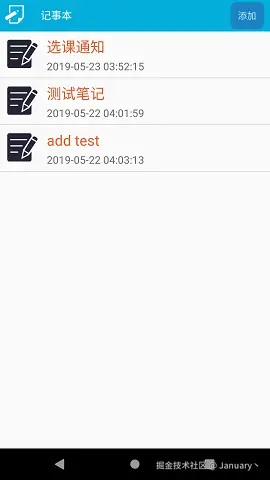
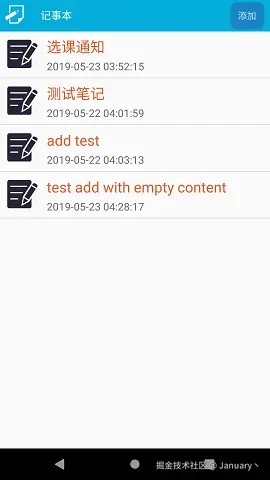
主界面(事先插入了测试数据)
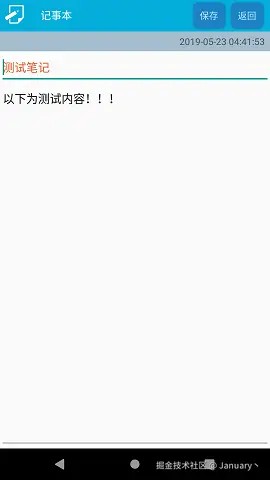
点击列表项浏览
主界面点击添加按钮
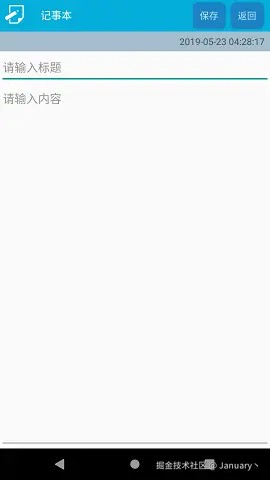
输入内容,当标题或内容为空时,点击==保存==或==返回(点击返回按钮、手机上的返回键)并选择保存==时
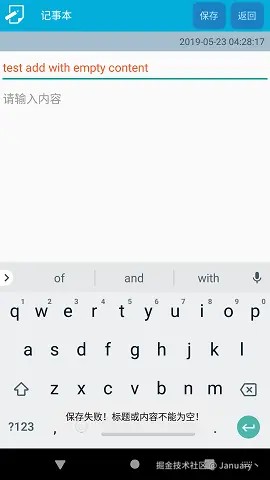
补全内容,点击==返回(点击返回按钮、手机上的返回键)==,提示保存
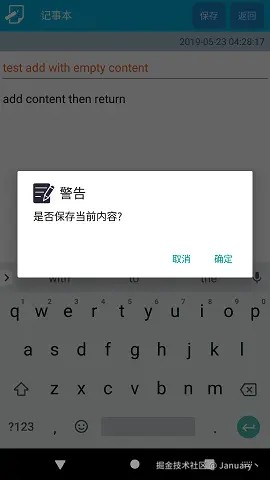
选择==确定==。也有toast提示,没有成功截下......选择==取消==时会放弃保存并跳转到主界面
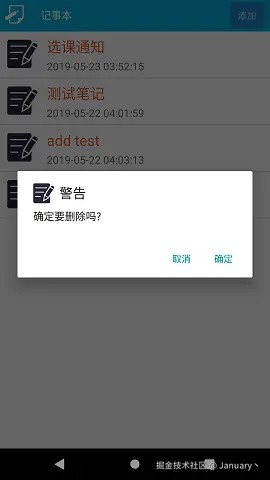
主界面长按列表项
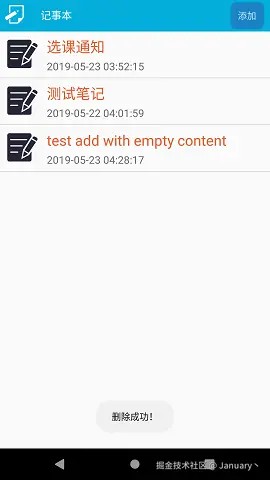
选择删除,提示删除成功
以上就是android利用sqlite实现简单的记事本(附源码)的详细内容,更多关于android记事本的资料请关注代码网其它相关文章!





发表评论