
 我要评论
我要评论在日常办公场景中,通过python脚本自动化整合excel数据与word文档,能够实现表格的智能迁移,满足不同场景下数据呈现的专业性要求。直接提取表格内容插入word适用于需要快速传递核心数据的场景,确保信息精准直达;完整复制表格样式及格式则能保留原数据可视化效果,匹配正式报告对排版美观的严苛标准;而将表格作为ole对象嵌入则兼顾了文档的动态更新能力,当源数据发生变更时,用户可通过双击对象直接调取excel进行编辑,这种交互式设计特别适用于需要长期维护的协作文件。
本文将介绍如何使用python通过以上三种方式将excel表格插入到word文档中。
本文所使用的word文档操作方法需要用到free spire.doc for python(pypi:pip install spire.doc.free),读取excel工作表数据需要用到free spire.xls for python(pypi:pip install spire.xls.free)。
提取excel工作表数据插入word文档
我们可以通过直接读取excel工作表数据,然后在word文档中创建表格并插入读取的数据,来实现excel表格到word文档的插入。
以下是操作步骤:
1.加载 excel 文件
- 创建 workbook 实例并使用 loadfromfile() 读取 excel 文件。
- 通过 worksheets.get_item(0) 获取第一个工作表。
- 使用 allocatedrange 获取已使用的单元格范围。
2.创建 word 文档并添加表格
- 创建 document 实例,并使用 addsection() 添加节。
- 使用 addtable() 添加表格。
3.复制 excel 的表头到 word
- 使用 addrow() 添加表头行。
- 通过 addcell().addparagraph().appendtext() 填充表头文本。
4.复制 excel 的数据行到 word
- 遍历 excel 的数据行,使用 addrow() 添加数据行。
- 通过 cells.get_item(col).addparagraph().appendtext() 填充单元格内容。
- 如果单元格包含公式,则使用 formulavalue,否则使用 value。
5.调整表格样式并保存 word 文档
- 使用 autofit(autofitbehaviortype.autofittowindow) 让表格适应窗口。
- 使用 applystyle(defaulttablestyle.gridtable1lightaccent6) 设置表格样式。
- 使用 savetofile(path, fileformat.docx2019) 保存 word 文档。
代码示例:
from spire.doc import document, autofitbehaviortype, fileformat, defaulttablestyle
from spire.xls import workbook

# 指定excel文件路径与输出word文档路径
excel_file = "sample.xlsx"
word_file = "output/exceldatatoword.docx"

# 读取 excel
with workbook() as workbook:
    workbook.loadfromfile(excel_file)
    worksheet = workbook.worksheets.get_item(0)
    allocated_range = worksheet.allocatedrange

    # 创建 word 文档
    with document() as doc:
        section = doc.addsection()
        table = section.addtable()

        # 添加表头行
        header_row = table.addrow()
        for col in range(allocated_range.columncount):
            cell = header_row.addcell()
            paragraph = cell.addparagraph()
            paragraph.appendtext(allocated_range.get_item(1, col + 1).text)

        # 添加数据行
        for row in range(1, allocated_range.rowcount):
            data_row = table.addrow()
            for col in range(allocated_range.columncount):
                cell = data_row.cells.get_item(col)
                paragraph = cell.addparagraph()
                cell_value = allocated_range.get_item(row + 1, col + 1)
                text = cell_value.formulavalue if cell_value.hasformula else cell_value.value
                paragraph.appendtext(text)

        # 自动调整表格并应用样式
        table.autofit(autofitbehaviortype.autofittowindow)
        table.applystyle(defaulttablestyle.gridtable1lightaccent6)

        # 保存 word 文档
        doc.savetofile(word_file, fileformat.docx2019)
结果
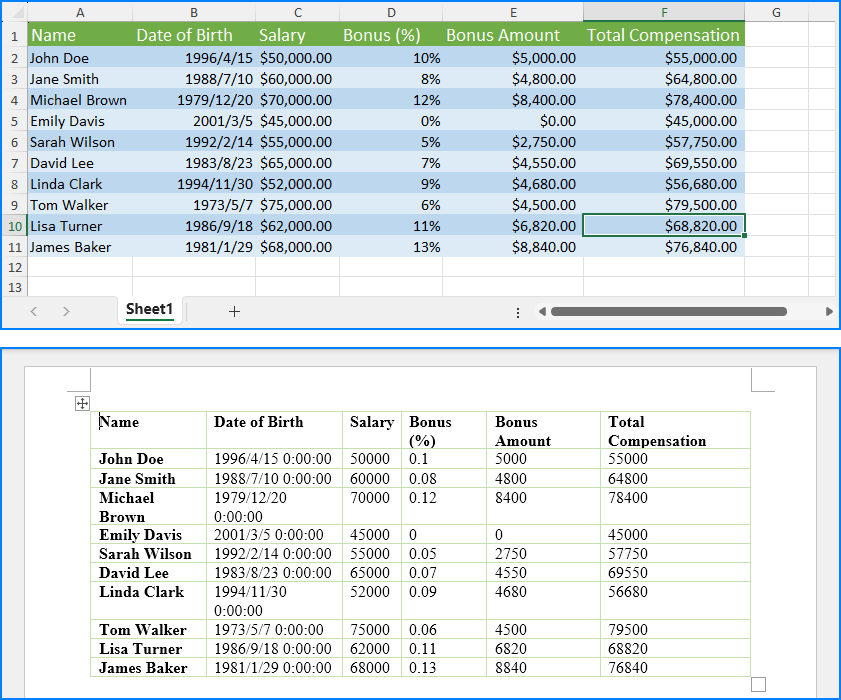
复制excel工作表数据及格式插入word文档
我们也可以使用库中提供的类、属性和方法来复制excel数据到word文档的同时,将单元格格式及文本格式一起复制到word文档中,从而实现高还原度地插入excel表格到word文档。我们需要使用库中提供的组件来新建方法实现上述操作。以下是操作步骤:
1.加载 excel 文件
- 创建 workbook 实例,并使用 loadfromfile() 读取 excel 文件。
- 获取第一个工作表 sheet。
2.创建 word 文档并设置页面方向
- 创建 document 实例,使用 addsection() 添加节。
- 设置页面方向为横向:section.pagesetup.orientation = pageorientation.landscape。
3.创建 word 表格
- 使用 addtable(true) 创建表格。
- 通过 resetcells(sheet.lastrow, sheet.lastcolumn) 设置表格的行数和列数。
4.执行合并单元格操作
使用 merge_cells(sheet, table) 方法,遍历 excel 中的合并单元格,并在 word 中执行相应的合并操作。
5.复制 excel 数据和样式到 word 表格
- 遍历 excel 表格的每一行和每一列,设置每行的高度:table.rows[r - 1].height = float(sheet.rows[r - 1].rowheight)。
- 获取每个单元格的数据和样式,使用 addparagraph().appendtext() 方法将数据复制到 word 表格中。
- 调用 copy_style(text_range, x_cell, w_cell) 方法,复制 excel 单元格的样式到 word 单元格。
6.保存 word 文档
使用 savetofile("output/copyexceldatastyletoword.docx", fileformat.docx2019) 保存 word 文件。
7.释放资源
调用 doc.dispose() 和 workbook.dispose() 释放资源。
代码示例
from spire.xls import *
from spire.doc import *


def merge_cells(sheet, table):
    """根据 excel 中的合并单元格信息,在 word 表格中执行相应的合并操作。"""
    if not sheet.hasmergedcells:
        return

    for cell_range in sheet.mergedcells:
        start_row, start_col = cell_range.row, cell_range.column
        row_count, col_count = cell_range.rowcount, cell_range.columncount

        # 处理水平合并
        if col_count > 1:
            for row in range(start_row, start_row + row_count):
                table.applyhorizontalmerge(row - 1, start_col - 1, start_col - 1 + col_count - 1)

        # 处理垂直合并
        if row_count > 1:
            table.applyverticalmerge(start_col - 1, start_row - 1, start_row - 1 + row_count - 1)


def copy_style(text_range, excel_cell, word_cell):
    """将 excel 单元格的样式复制到 word 单元格。"""
    font = excel_cell.style.font
    text_range.characterformat.textcolor = color.fromrgb(font.color.r, font.color.g, font.color.b)
    text_range.characterformat.fontsize = float(font.size)
    text_range.characterformat.fontname = font.fontname
    text_range.characterformat.bold = font.isbold
    text_range.characterformat.italic = font.isitalic

    # 设置单元格背景色
    if excel_cell.style.fillpattern != excelpatterntype.none:
        word_cell.cellformat.backcolor = color.fromrgb(excel_cell.style.color.r, excel_cell.style.color.g,
                                                       excel_cell.style.color.b)

    # 设置水平对齐方式
    align_map = {
        horizontalaligntype.left: horizontalalignment.left,
        horizontalaligntype.center: horizontalalignment.center,
        horizontalaligntype.right: horizontalalignment.right
    }
    if excel_cell.horizontalalignment in align_map:
        text_range.ownerparagraph.format.horizontalalignment = align_map[excel_cell.horizontalalignment]

    # 设置垂直对齐方式
    valign_map = {
        verticalaligntype.top: verticalalignment.top,
        verticalaligntype.center: verticalalignment.middle,
        verticalaligntype.bottom: verticalalignment.bottom
    }
    if excel_cell.verticalalignment in valign_map:
        word_cell.cellformat.verticalalignment = valign_map[excel_cell.verticalalignment]


# 加载 excel 文件
workbook = workbook()
workbook.loadfromfile("sample.xlsx")

# 获取第一个工作表
sheet = workbook.worksheets[0]

# 创建 word 文档
doc = document()
section = doc.addsection()
section.pagesetup.orientation = pageorientation.landscape

# 创建 word 表格
table = section.addtable(true)
table.resetcells(sheet.lastrow, sheet.lastcolumn)

# 执行合并单元格
merge_cells(sheet, table)

# 复制 excel 数据和样式到 word 表格
for r in range(1, sheet.lastrow + 1):
    table.rows[r - 1].height = float(sheet.rows[r - 1].rowheight)

    for c in range(1, sheet.lastcolumn + 1):
        x_cell = sheet.range[r, c]
        w_cell = table.rows[r - 1].cells[c - 1]

        # 添加文本并复制样式
        text_range = w_cell.addparagraph().appendtext(x_cell.numbertext)
        copy_style(text_range, x_cell, w_cell)

# 保存 word 文档
doc.savetofile("output/copyexceldatastyletoword.docx", fileformat.docx2019)
doc.dispose()
workbook.dispose()
结果
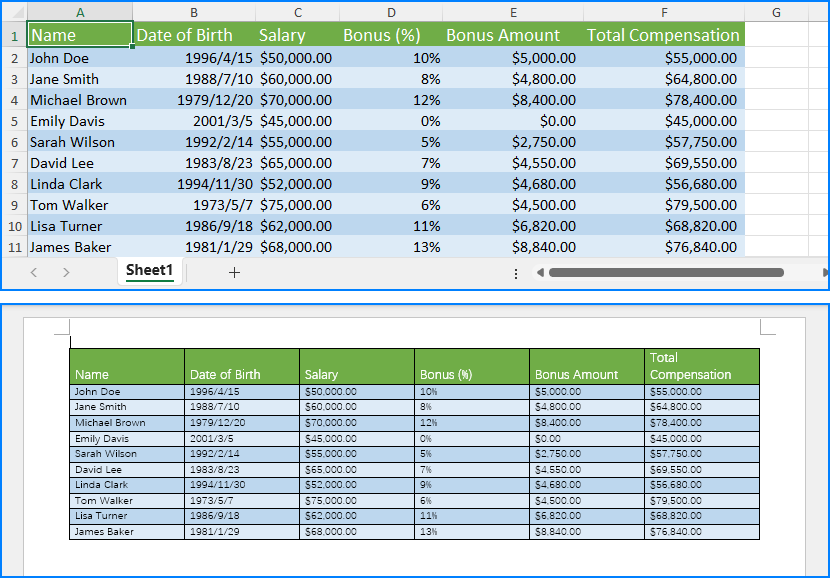
将excel工作表作为ole对象嵌入word文档
我们还可以直接以ole对象形式将excel工作表嵌入到word文档中,从而实现在word文档中展示表格的同时,使表格拥有excel的高级功能。在使用代码嵌入excel工作表到word文档时,需要先将excel工作表保存为图像应用于word文档中ole对象的展示。当表格在word文档中编辑或更新后,表格展示会自动更新为最新的数据。
以下是操作步骤:
1.定义文件路径
- 定义 excel 文件路径 excel_path 和输出 word 文件路径 output_doc_path。
- 定义图像文件路径 image_path。
2.创建 word 文档并设置页面方向
- 创建 document 实例,使用 addsection() 添加节。
- 设置页面方向为横向:section.pagesetup.orientation = pageorientation.landscape。
- 使用 addparagraph() 添加段落。
3.载入 excel 文件并获取工作表
- 创建 workbook 实例,并使用 loadfromfile() 读取 excel 文件。
- 获取第一个工作表 sheet。
4.将 excel 表格转换为图像并保存
使用 sheet.toimage() 方法将工作表转换为图像,并保存为 image_path。
5.创建并加载工作表图像
创建 docpicture 实例,并使用 loadimage() 加载工作表图像。
6.将 ole 对象(excel 工作表)插入到 word 文档
- 使用 paragraph.appendoleobject() 插入 excel 工作表作为 ole 对象,并将类型设置为 oleobjecttype.excelworksheet。
- 设置 ole 对象不显示为图标:ole.displayasicon = false。
7.保存 word 文档
使用 savetofile(output_doc_path, fileformat.docx2019) 保存 word 文件。
代码示例
import os
from spire.doc import document, docpicture, fileformat, oleobjecttype, pageorientation
from spire.xls import workbook

# 定义文件路径
excel_path = "sample.xlsx"
output_doc_path = os.path.join("output", "insertexceloletoword.docx")
image_path = "sheetimage.png"

# 创建word文档并配置页面方向
with document() as doc:
    section = doc.addsection()
    section.pagesetup.orientation = pageorientation.landscape
    paragraph = section.addparagraph()

    # 载入excel文件并获取第一个工作表
    with workbook() as workbook:
        workbook.loadfromfile(excel_path)
        sheet = workbook.worksheets.get_item(0)

        # 将excel表格转换为图像并保存
        image_stream = sheet.toimage(0, 0, sheet.allocatedrange.rowcount, sheet.allocatedrange.columncount)
        image_stream.save(image_path)

        # 创建docpicture对象,并加载工作表图像
        pic = docpicture(doc)
        pic.loadimage(image_path)

        # 将ole对象(excel工作表)插入到word文档
        ole = paragraph.appendoleobject(excel_path, pic, oleobjecttype.excelworksheet)
        # 设置不显示ole对象为图标
        ole.displayasicon = false

    # 保存word文档
    doc.savetofile(output_doc_path, fileformat.docx2019)
结果
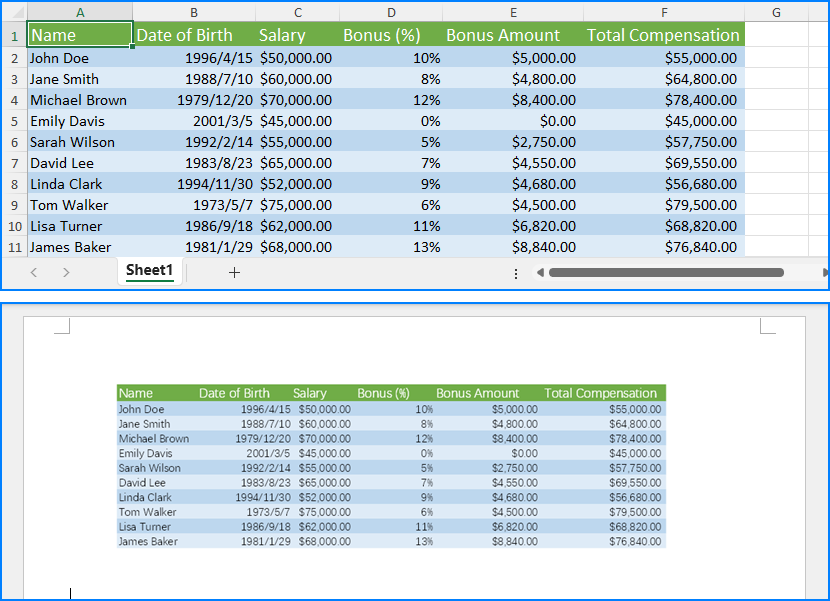
以上就是使用python实现将excel表格插入到word文档中的详细内容,更多关于python excel插入word的资料请关注代码网其它相关文章!





发表评论