
 我要评论
我要评论引言:为什么需要专业管理ssh连接?
作为一名it运维工程师或开发人员,我们每天都需要与多台远程服务器进行交互。xshell作为业界领先的ssh客户端工具,以其强大的功能和稳定性赢得了广大技术人员的青睐。然而,随着使用时间的增长,我们会积累大量服务器连接配置,当更换电脑或重装系统时,如何安全、完整地迁移这些配置成为一个实际问题。
本文将从xshell账号系统、会话管理、到磁盘迁移的全过程,为您提供一套完整的解决方案,确保您的ssh连接配置永不丢失。
第一章:xshell账号系统深度解析
1.1 netsarang账号的价值
很多用户不知道,xshell提供了一个完全免费的账号系统——netsarang account。这个账号不仅仅是一个登录凭证,更是一个配置同步的桥梁。
注册账号的四大优势:
- 多设备同步:在家和办公室的电脑间无缝切换
- 配置云备份:防止本地数据丢失
- 个性化设置漫游:保持统一的使用体验
- 版本升级便利:简化激活和许可证管理
1.2 账号设置与配置同步
启用配置同步非常简单:
- 注册netsarang账号(官网免费注册)
- 在xshell中登录:工具 → 设置 → 账户
- 启用会话同步功能
# 检查当前登录状态的方法
# 在xshell中,点击菜单栏的"工具" → "设置" → "账户"
# 如果已登录,会显示账户邮箱;否则显示登录按钮
第二章:xshell会话管理机制
2.1 会话存储架构
理解xshell如何存储会话信息是进行迁移的基础。xshell采用分层存储结构:
%userprofile%\documents\netsarang computer\x版本号\
├── xshell\
│   ├── sessions\          # 会话配置文件 (.xsh)
│   ├── themes\           # 配色方案
│   └── scripts\          # 脚本文件
├── xftp\                 # xftp相关配置
└── common\              # 共享配置
2.2 会话文件的内部结构
每个.xsh文件实际上是一个xml格式的配置文件:
<!-- 示例:session.xsh 文件结构 -->
<?xml version="1.0" encoding="utf-8"?>
<session>
  <connection>
    <host>192.168.1.100</host>
    <port>22</port>
    <username>root</username>
    <authmethod>2</authmethod>
    <password encrypted="1">aqaaancmnd8bfd...</password>
  </connection>
  <terminal>
    <fontname>consolas</fontname>
    <fontsize>12</fontsize>
    <theme>solarized dark</theme>
  </terminal>
  <category>production servers</category>
</session>
2.3 批量管理技巧
导出所有会话:
# 使用xshell内置导出功能
# 1. 文件 → 会话 → 导出会话
# 2. 选择导出格式(推荐.xsb)
# 3. 选择保存位置
命令行批量导出(高级):
# powershell脚本:批量备份xshell会话
$sourcepath = "$env:userprofile\documents\netsarang computer\8\xshell\sessions"
$backuppath = "d:\backup\xshell_sessions_$(get-date -format 'yyyymmdd')"

# 创建备份目录
new-item -itemtype directory -path $backuppath -force

# 复制所有会话文件
copy-item -path "$sourcepath\*.xsh" -destination $backuppath -recurse

# 导出会话列表
get-childitem -path $sourcepath -filter "*.xsh" |
    select-object name, lastwritetime |
    export-csv -path "$backuppath\session_list.csv" -notypeinformation

write-host "备份完成!共备份了 $(get-childitem $backuppath *.xsh).count 个会话文件。" -foregroundcolor green
第三章:磁盘迁移的四种方法详解
3.1 方法一:符号链接(symbolic link)方案
这是最推荐的方法,利用windows的ntfs符号链接功能,实现无缝迁移。
完整操作步骤:
@echo off
rem xshell会话目录迁移脚本
rem 请以管理员身份运行此脚本

echo ========================================
echo xshell 会话目录迁移工具
echo ========================================
echo.

rem 设置路径变量
set "source_dir=c:\users\administrator\documents\netsarang computer"
set "target_dir=d:\users\administrator\documents\netsarang computer"

echo 源目录: %source_dir%
echo 目标目录: %target_dir%
echo.

rem 步骤1:检查xshell是否运行
tasklist | findstr /i "xshell.exe" > nul
if %errorlevel% equ 0 (
    echo [错误] 检测到xshell正在运行,请先关闭xshell!
    pause
    exit /b 1
)

echo [信息] xshell已关闭,继续执行...
echo.

rem 步骤2:创建目标目录结构
if not exist "%target_dir%" (
    echo [信息] 创建目标目录...
    mkdir "%target_dir%"
) else (
    echo [信息] 目标目录已存在
)

rem 步骤3:复制数据(如果源目录存在)
if exist "%source_dir%" (
    echo [信息] 正在复制数据到新位置...
    xcopy "%source_dir%" "%target_dir%" /e /h /c /i /y
    echo [信息] 数据复制完成!

    rem 步骤4:重命名原目录(备份)
    echo [信息] 备份原目录...
    ren "%source_dir%" "netsarang computer_backup_%date:~0,4%%date:~5,2%%date:~8,2%"
) else (
    echo [警告] 源目录不存在,跳过复制步骤
)

rem 步骤5:创建符号链接
echo [信息] 创建符号链接...
mklink /j "%source_dir%" "%target_dir%"

if %errorlevel% equ 0 (
    echo [成功] 符号链接创建成功!
    echo.
    echo 迁移完成!
    echo 原路径: %source_dir%
    echo 实际存储: %target_dir%
) else (
    echo [错误] 符号链接创建失败!
)

echo.
pause
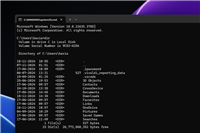
验证符号链接:
# 验证符号链接是否创建成功
get-item "c:\users\administrator\documents\netsarang computer" |
    select-object name, target, linktype, attributes

# 预期输出:
# name                  : netsarang computer
# target                : d:\users\administrator\documents\netsarang computer
# linktype              : junction
# attributes            : directory, reparsepoint
3.2 方法二:注册表修改方案
对于喜欢手动控制的用户,可以通过修改注册表实现路径重定向。
注册表操作脚本:
# powershell:修改xshell注册表路径
$regpath = "hkcu:\software\netsarang\xshell\8"
$oldpath = "c:\\users\\administrator\\documents\\netsarang computer"
$newpath = "d:\\users\\administrator\\documents\\netsarang computer"

# 备份注册表
$backupfile = "d:\backup\xshell_registry_backup_$(get-date -format 'yyyymmdd').reg"
reg export "hkcu\software\netsarang" $backupfile /y

# 查找并替换所有相关路径
function update-registrypaths {
    param($path)

    get-childitem -path $path -recurse | foreach-object {
        $item = $_
        get-itemproperty -path $item.pspath | get-member -membertype noteproperty | foreach-object {
            $propertyname = $_.name
            $propertyvalue = get-itempropertyvalue -path $item.pspath -name $propertyname

            if ($propertyvalue -like "*$oldpath*") {
                $newvalue = $propertyvalue -replace [regex]::escape($oldpath), $newpath
                set-itemproperty -path $item.pspath -name $propertyname -value $newvalue
                write-host "已更新: $($item.pspath)\$propertyname" -foregroundcolor yellow
            }
        }
    }
}

# 执行更新
write-host "开始更新注册表路径..." -foregroundcolor cyan
update-registrypaths -path $regpath
write-host "注册表更新完成!" -foregroundcolor green
3.3 方法三:环境变量重定向
创建一个系统级的环境变量重定向:
:: 创建系统环境变量脚本
:: 保存为 set_xshell_path.cmd,以管理员运行

@echo off
rem 设置xshell配置目录环境变量
setx xshell_config_dir "d:\users\administrator\documents\netsarang computer" /m

rem 创建目录符号链接(如果尚未创建)
if not exist "d:\users\administrator\documents\netsarang computer" (
    mkdir "d:\users\administrator\documents\netsarang computer"
)

rem 修改xshell配置文件指向环境变量
set config_file="%appdata%\netsarang\xshell\config\xshell.ini"

if exist %config_file% (
    rem 备份原配置文件
    copy %config_file% "%config_file%.backup"

    rem 使用powershell更新配置文件
    powershell -command "
        $content = get-content '%config_file%' -raw;
        $newcontent = $content -replace 'c:\\\\users\\\\administrator\\\\documents\\\\netsarang computer','%xshell_config_dir%';
        set-content '%config_file%' $newcontent -encoding utf8;
    "

    echo 配置文件已更新!
) else (
    echo 配置文件不存在,创建新的...
    echo [settings] > %config_file%
    echo sessionpath=%%xshell_config_dir%%\xshell\sessions >> %config_file%
)

echo 环境变量设置完成!
pause
3.4 方法四:脚本自动化迁移
创建一个完整的自动化迁移脚本:
#!/usr/bin/env python3
"""
xshell配置迁移工具
作者:运维工程师
功能:自动迁移xshell配置到新磁盘
"""

import os
import shutil
import winreg
import subprocess
import sys
from pathlib import path
from datetime import datetime

class xshellmigrator:
    def __init__(self, new_drive='d'):
        """初始化迁移器"""
        self.username = os.getenv('username')
        self.old_base = path(f'c:/users/{self.username}/documents/netsarang computer')
        self.new_base = path(f'{new_drive}:/users/{self.username}/documents/netsarang computer')

        # 检测xshell版本
        self.xshell_version = self.detect_xshell_version()

    def detect_xshell_version(self):
        """检测已安装的xshell版本"""
        try:
            with winreg.openkey(winreg.hkey_current_user,
                              r"software\netsarang") as key:
                for i in range(winreg.queryinfokey(key)[0]):
                    subkey_name = winreg.enumkey(key, i)
                    if subkey_name.startswith('xshell'):
                        return subkey_name
        except:
            pass
        return 'xshell\\8'  # 默认版本

    def backup_original(self):
        """备份原始数据"""
        timestamp = datetime.now().strftime('%y%m%d_%h%m%s')
        backup_dir = self.old_base.parent / f'netsarang_backup_{timestamp}'

        if self.old_base.exists():
            print(f'正在备份到: {backup_dir}')
            shutil.copytree(self.old_base, backup_dir)
            return backup_dir
        return none

    def migrate_files(self):
        """迁移文件到新位置"""
        if not self.new_base.exists():
            self.new_base.mkdir(parents=true)
            print(f'创建目标目录: {self.new_base}')

        if self.old_base.exists():
            print('正在复制文件...')

            # 使用robocopy进行更可靠的复制
            cmd = [
                'robocopy',
                str(self.old_base),
                str(self.new_base),
                '/e',    # 包括子目录
                '/copyall',  # 复制所有文件信息
                '/r:3',  # 重试3次
                '/w:5',  # 等待5秒
                '/log+:migration.log'
            ]

            result = subprocess.run(cmd, capture_output=true, text=true)
            print(f'文件复制完成,详情请查看 migration.log')

    def create_symbolic_link(self):
        """创建符号链接"""
        try:
            # 删除原目录(如果存在)
            if self.old_base.exists():
                subprocess.run(['rmdir', str(self.old_base), '/s', '/q'],
                             shell=true, capture_output=true)

            # 创建符号链接
            cmd = ['mklink', '/j',
                  str(self.old_base),
                  str(self.new_base)]

            result = subprocess.run(cmd, shell=true,
                                  capture_output=true, text=true)

            if result.returncode == 0:
                print('符号链接创建成功!')
                return true
            else:
                print(f'创建失败: {result.stderr}')
                return false

        except exception as e:
            print(f'创建符号链接时出错: {e}')
            return false

    def update_registry(self):
        """更新注册表"""
        try:
            reg_path = f"software\\netsarang\\{self.xshell_version}"

            with winreg.openkey(winreg.hkey_current_user,
                              reg_path, 0,
                              winreg.key_all_access) as key:

                # 遍历所有值并更新路径
                for i in range(winreg.queryinfokey(key)[1]):
                    name, value, type_ = winreg.enumvalue(key, i)

                    if isinstance(value, str) and 'netsarang computer' in value:
                        new_value = value.replace(
                            str(self.old_base),
                            str(self.new_base)
                        )
                        winreg.setvalueex(key, name, 0, type_, new_value)
                        print(f'更新注册表: {name}')

        except exception as e:
            print(f'更新注册表时出错: {e}')

    def verify_migration(self):
        """验证迁移结果"""
        checks = [
            ('新目录存在', self.new_base.exists()),
            ('符号链接存在', self.old_base.exists()),
            ('新目录有内容', any(self.new_base.iterdir())),
        ]

        print('\n验证结果:')
        print('=' * 40)

        for check_name, status in checks:
            status_str = '✓ 通过' if status else '✗ 失败'
            print(f'{check_name:20} {status_str}')

        # 检查会话文件数量
        sessions_dir = self.new_base / self.xshell_version / 'xshell' / 'sessions'
        if sessions_dir.exists():
            session_count = len(list(sessions_dir.glob('*.xsh')))
            print(f'会话文件数量: {session_count} 个')

        return all(status for _, status in checks)

    def run(self):
        """执行迁移流程"""
        print('=' * 50)
        print('xshell配置迁移工具')
        print('=' * 50)

        # 1. 备份
        print('\n[1/5] 备份原始数据...')
        backup_path = self.backup_original()
        if backup_path:
            print(f'备份完成: {backup_path}')

        # 2. 迁移文件
        print('\n[2/5] 迁移文件到新位置...')
        self.migrate_files()

        # 3. 创建符号链接
        print('\n[3/5] 创建符号链接...')
        if not self.create_symbolic_link():
            print('警告: 符号链接创建失败,尝试其他方法')

        # 4. 更新注册表
        print('\n[4/5] 更新注册表...')
        self.update_registry()

        # 5. 验证
        print('\n[5/5] 验证迁移结果...')
        success = self.verify_migration()

        if success:
            print('\n✅ 迁移成功完成!')
            print('提示: 请重新启动xshell以使更改生效')
        else:
            print('\n⚠️  迁移完成,但存在一些问题')
            print('建议: 检查migration.log文件了解详情')

if __name__ == '__main__':
    # 检查管理员权限
    import ctypes
    if not ctypes.windll.shell32.isuseranadmin():
        print('请以管理员身份运行此脚本!')
        input('按回车键退出...')
        sys.exit(1)

    # 获取目标驱动器
    target_drive = input('请输入目标驱动器字母 (默认: d): ').strip() or 'd'

    # 执行迁移
    migrator = xshellmigrator(target_drive.upper())
    migrator.run()

    input('\n按回车键退出...')
第四章:迁移后的验证与故障排除
4.1 验证步骤清单
完成迁移后,请按以下清单验证:
- [ ] 1. xshell能正常启动
- [ ] 2. 会话列表完整显示
- [ ] 3. 可以成功连接到服务器
- [ ] 4. 新建会话保存在正确位置
- [ ] 5. 配色方案等个性化设置正常
- [ ] 6. 多标签页功能正常
- [ ] 7. 脚本功能正常
- [ ] 8. 日志记录正常
4.2 常见问题解决
问题1:xshell启动报错"找不到会话文件"
# 解决方案:重新导入会话
# 1. 检查符号链接是否正确
dir /a "c:\users\administrator\documents\netsarang computer"

# 2. 如果链接损坏,重新创建
rmdir "c:\users\administrator\documents\netsarang computer"
mklink /j "c:\users\administrator\documents\netsarang computer" "d:\路径"
问题2:连接时密码丢失
# 原因:加密的密码与用户账户绑定
# 解决方案:
# 1. 重新输入密码保存
# 2. 使用密钥认证代替密码
# 3. 从备份恢复原用户环境
问题3:权限不足错误
# 解决方案:重置文件夹权限
$path = "d:\users\administrator\documents\netsarang computer"
$acl = get-acl $path
$rule = new-object system.security.accesscontrol.filesystemaccessrule(
    "$env:userdomain\$env:username",
    "fullcontrol",
    "containerinherit,objectinherit",
    "none",
    "allow"
)
$acl.setaccessrule($rule)
set-acl $path $acl
第五章:最佳实践与维护建议
5.1 定期维护脚本
创建一个定期维护脚本:
# xshell配置维护脚本
# 保存为: maintain_xshell.ps1

function backup-xshellconfig {
    param(
        [string]$backuproot = "d:\backup\xshell",
        [int]$keepdays = 30
    )

    $datestr = get-date -format "yyyy-mm-dd"
    $backupdir = join-path $backuproot $datestr

    # 源路径
    $sourcedir = join-path $env:userprofile "documents\netsarang computer"

    if (test-path $sourcedir) {
        # 创建备份目录
        new-item -itemtype directory -path $backupdir -force | out-null

        # 备份会话
        $sessions = get-childitem -path "$sourcedir\*\xshell\sessions" -filter "*.xsh" -recurse
        if ($sessions.count -gt 0) {
            copy-item -path $sessions.fullname -destination "$backupdir\sessions\" -recurse
            write-host "备份了 $($sessions.count) 个会话文件" -foregroundcolor green
        }

        # 备份配置文件
        $configpath = "$env:appdata\netsarang"
        if (test-path $configpath) {
            copy-item -path $configpath -destination "$backupdir\appdata\" -recurse
        }

        # 清理旧备份
        get-childitem -path $backuproot -directory |
            where-object { $_.creationtime -lt (get-date).adddays(-$keepdays) } |
            remove-item -recurse -force

        write-host "备份完成: $backupdir" -foregroundcolor green
    }
}

function export-xshellsessions {
    param(
        [string]$exportpath = "d:\backup\xshell\sessions_export.xsb"
    )

    # 这里需要调用xshell的com接口或使用ui自动化
    # 暂时提供手动步骤:
    write-host @"
手动导出步骤:
1. 打开xshell
2. 点击 [文件] → [会话] → [导出会话]
3. 选择所有会话
4. 保存到: $exportpath
"@ -foregroundcolor yellow
}

# 执行维护任务
write-host "开始xshell配置维护..." -foregroundcolor cyan
backup-xshellconfig
export-xshellsessions
write-host "维护完成!" -foregroundcolor green
5.2 灾难恢复计划
建立三级恢复机制:
- 快速恢复:符号链接 + 本地备份(24小时内)
- 云同步恢复:netsarang账号同步(随时)
- 完整恢复:定期完整备份 + 配置文件归档
结论:构建健壮的ssh连接管理体系
通过本文的详细讲解,您应该已经掌握了:
- xshell账号系统的价值——不仅仅是登录,更是配置同步的保障
- 会话管理机制——理解.xsh文件的组织和结构
- 四种迁移方法——从简单的符号链接到完整的python自动化脚本
- 验证与维护——确保迁移后的稳定运行
核心建议:
- 优先使用符号链接方法进行磁盘迁移
- 务必注册并使用netsarang账号
- 建立定期备份习惯
- 重要服务器连接采用密钥认证而非密码
记住,一个优秀的运维工程师不仅能够解决问题,更能通过自动化工具和良好习惯预防问题。xshell作为我们日常工作的重要工具,值得投入时间进行科学管理。
本文提供的脚本和方案已在windows 10/11 + xshell 7/8环境下测试通过。
在执行任何系统级操作前,请务必备份重要数据。
以上就是xshell从会话同步到磁盘迁移的完整配置指南的详细内容,更多关于xshell会话同步到磁盘迁移的资料请关注代码网其它相关文章!



发表评论